
Getting a first grip on Copilot Studio agents as an administrator

Introduction
With the rise of AI Agents in organizations, I see at many customers AI Identities rapidly being created in Entra ID. One of the first questions most admins almost immediately have is, how can we know who created the AI Agent Identities, and how can we know where the related Agent lives? In this blogpost I will talk you through the steps on how to answer these basic but important governance questions.
AI Identity sprawl
With Microsoft giving the opportunity for both administrators and users to create AI agents very rapidly via - for example - Microsoft Copilot Studio, I see at a lot of customers massive lists of AI Agents being registered in Entra ID. The thing I noticed is that if you do not enable some specific features in the Microsoft suite, it is very hard to find from an administrator perspective who created the agent and where the agent lives.
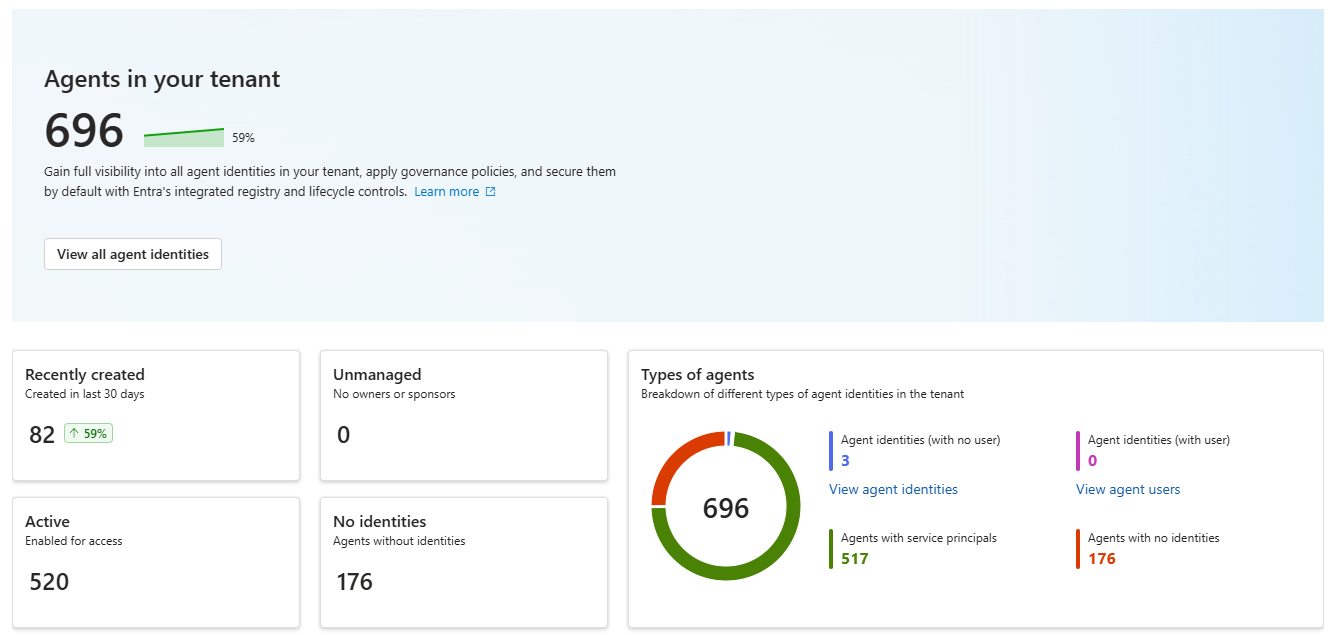
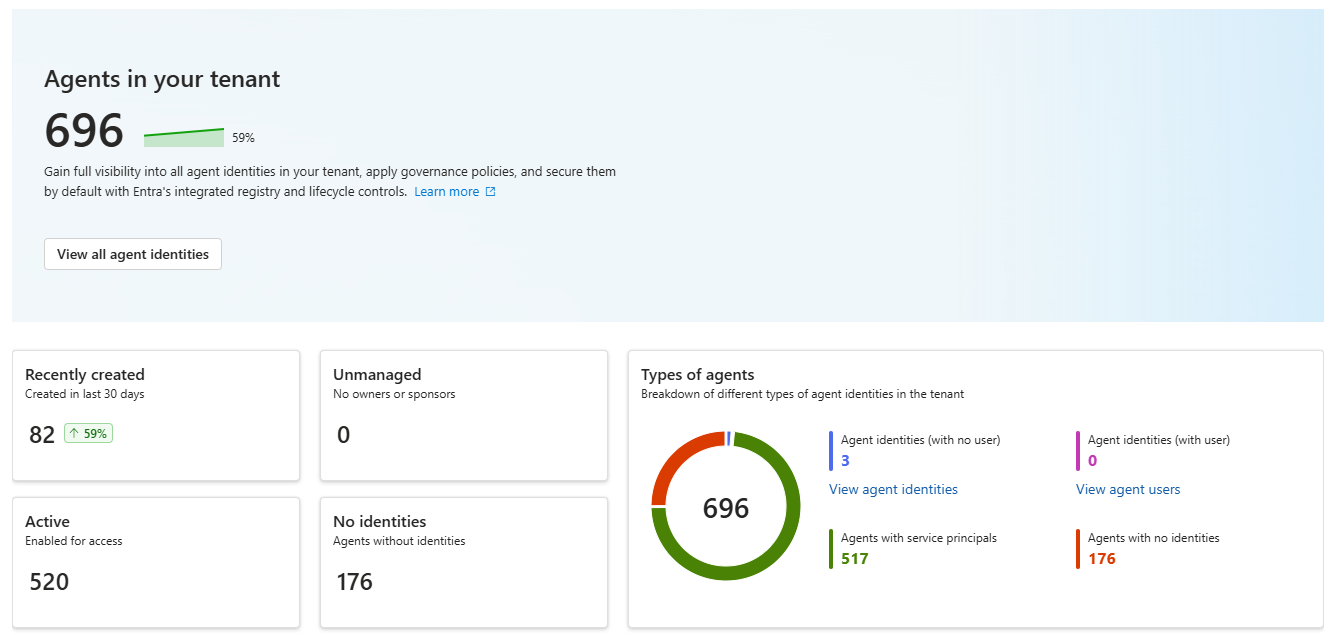
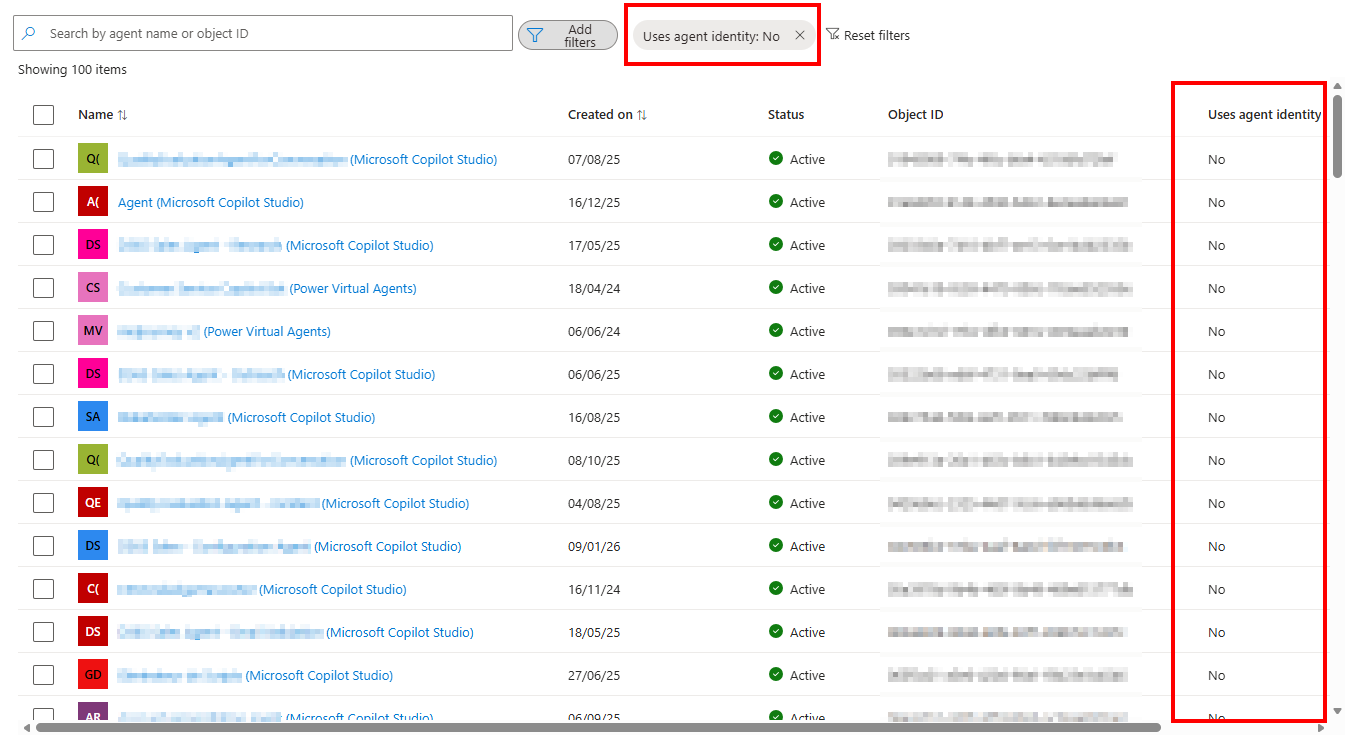
As you can see in above screenshot, a lot of agents are found without an agent identity, while there are a lot of agents with an agent identity as well. To start, we are going to focus on the agents that have an identity in Entra ID.
How are agent identities created?
In the Microsoft learn page we can find how Agent Identities can be created. Here we can see that most of the channels are mostly related to admins, but also that there is one channel called ‘Microsoft product integrations’:
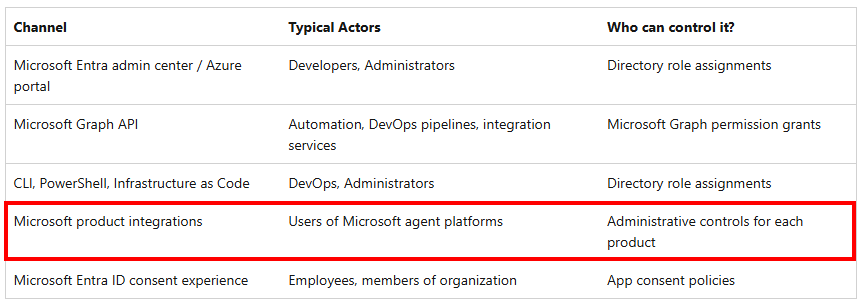
For these product integrations, admins can control who can create agents via ‘product specific administrative controls’. Looking a bit further in the learn page, we can find the products that are by default integrated with Agent ID:
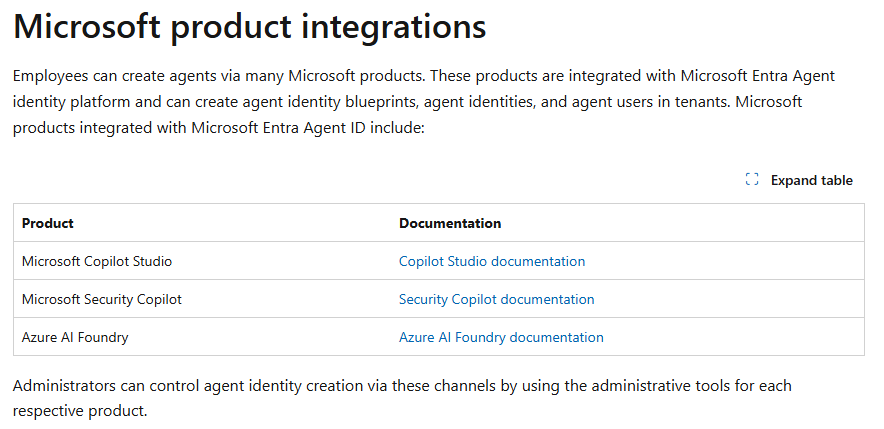
So the current integrated product are:
- Microsoft Copilot Studio
- Microsoft Security Copilot
- Microsoft Foundry
Out of the above three mentioned products, I see that most of my customers mainly create agents from Microsoft Copilot Studio, which is also the most user friendly one for end-users. I even learned that on average my customers have between 70% and 90% of the Agent Identities registered in Agent ID created via Copilot Studio. Therefore, I will mainly focus on agents created from Copilot Studio in this blog.
The first copilot studio identity challenge
Looking at the agent identity list in Agent ID, you will probably see already a lot of agents created in your organization. As mentioned earlier, the biggest part will probably come from Copilot Studio because end-users received access to this application. The challenge with Copilot Studio is that by default, the agent identities it creates still uses ’legacy’ application service principals (just like the service principals we use for other non-ai applications). You can see this in the UI by adding the ‘Uses agent identity’ column and filter on ‘No’:
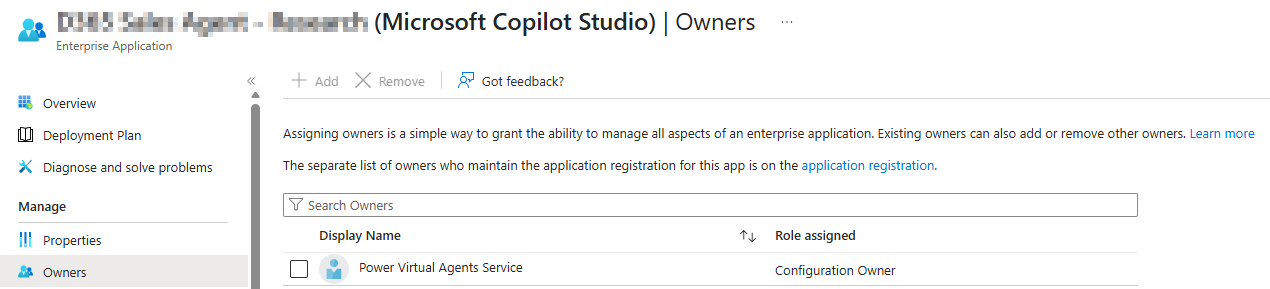
With these applications service principals, the user that created the agent is not added by default as a sponsor or owner of the Agent Identity, which makes it hard for an administrator to see the user who created the identity via the Agent ID blade in the Entra Admin portal. For Copilot Studio specifically, you will see that the Owner will always be ‘Power Virtual Agents Service’:
Trying to find the owner elsewhere
Trying to figure out who created these ’legacy’ identities in the past, is very hard to do. When looking at the service principal object via the Graph API https://graph.microsoft.com/beta/servicePrincipals/<objectId>, we can only see which application created the identity but not the user that initiated it.

The same goes when you query the Entra ID Audit Logs, the Identity flagged in the audit log is the application the user was using.
1AuditLogs
2| where OperationName == "Add service principal"
3| where TargetResources contains "<objectId>"
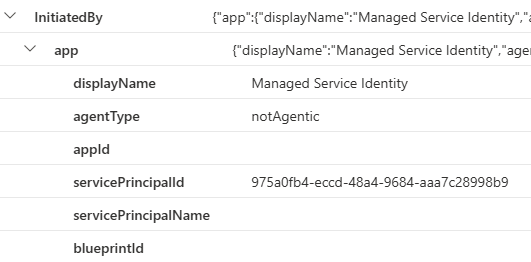
Up until this point, I still did not find a way on how to know who created an application service principal for an agent using Entra ID alone. There is a way on how to find it using Defender XDR, which you will read later in the blogpost.
Solving the ‘owner’ issue
To solve this issue, administrators can actually do something very easy. While it is still in preview, you can enable in Copilot Studio that all agents need to create an agent identity following the new Agent ID rules. This makes sure that the agent identities are created using the blueprint principle.
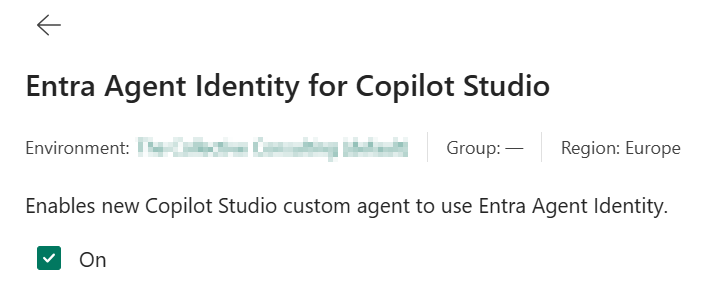
Once enabled, you will see that new Copilot Studio created identities will have an agent identity:

The benefit of this is as you can see in the documentation on how Agent Identities can be created, that Agent Identities always need to have a sponsor set. In the background, Copilot Studio will assign the user initiating the Agent Identity creation process as sponsor to the identity:
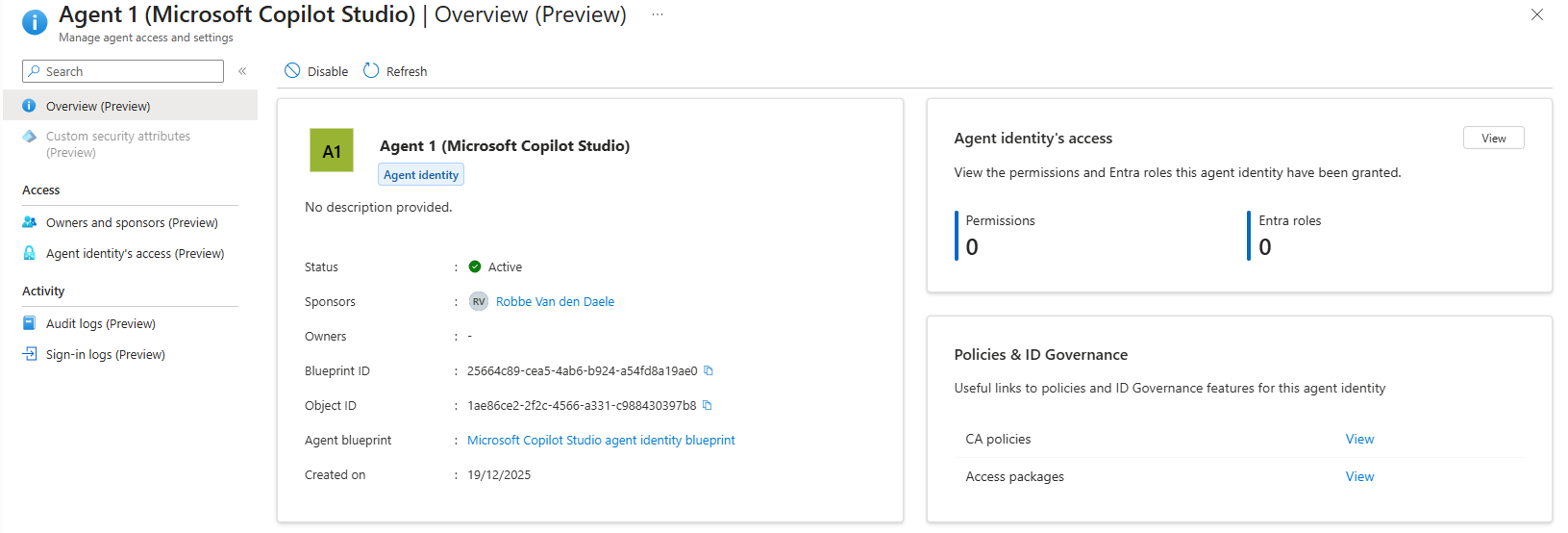
With this simple setting enabled, identity administrator can easily find which users created an agent identity.
The copilot studio transparency challenge
Another challenge security administrators might have is knowing which settings and tools are being used by agents. This can be a requirement to audit if users are deploying or using unsafe agents or not.
Solving the transparency challenge
This challenge can be solved by enabling the Copilot Studio AI Agent inventory in Defender XDR. With this feature enabled, you will get an inventory in Defender XDR of the AI Agents running in Copilot Studio.
You need ‘Power Platform Administrator’ to enable this feature.
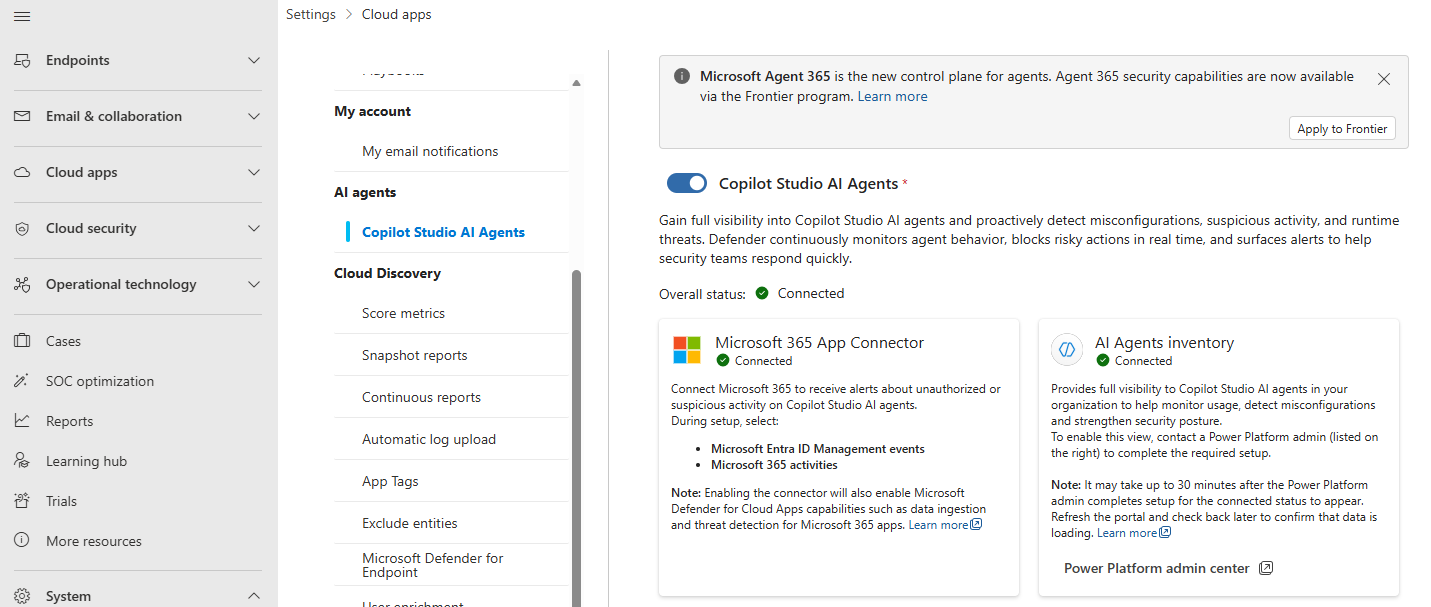
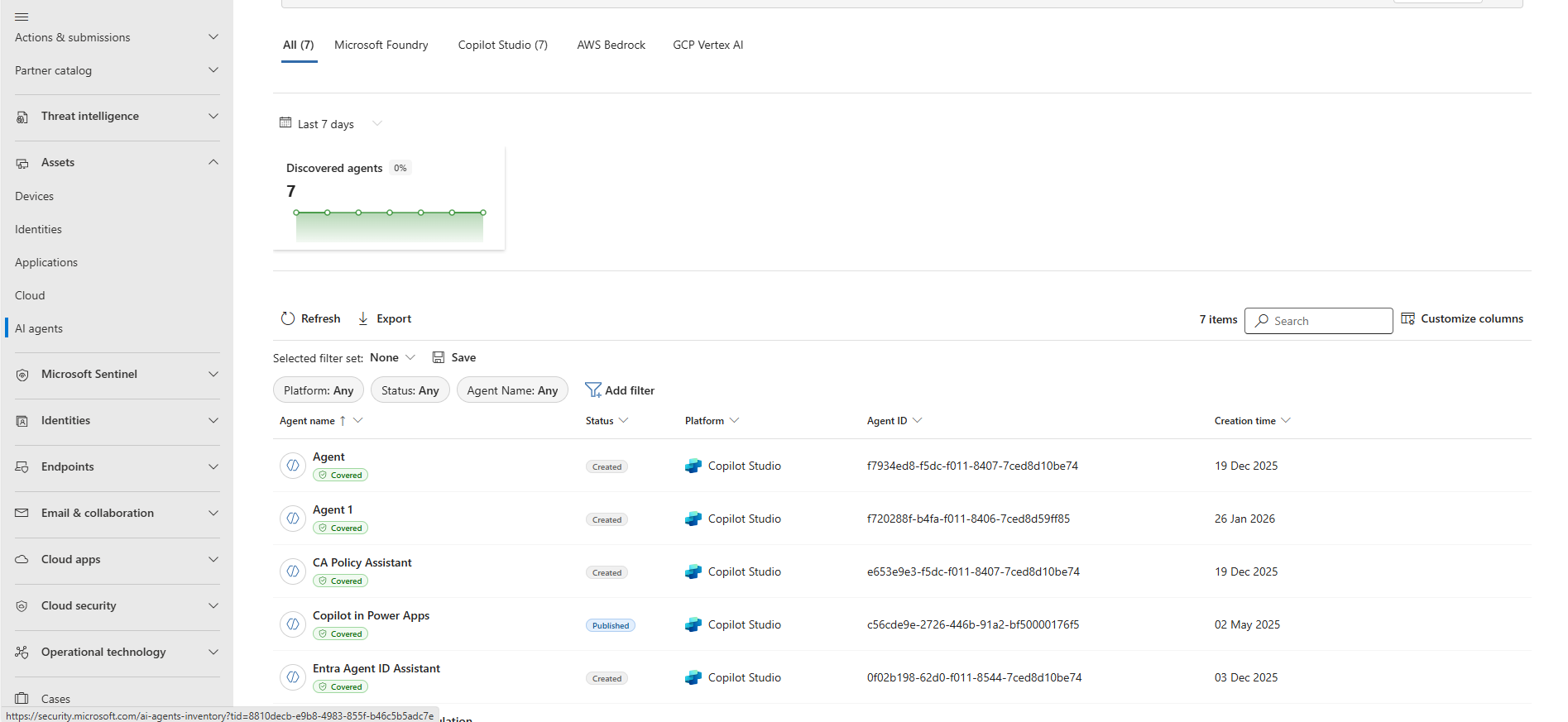
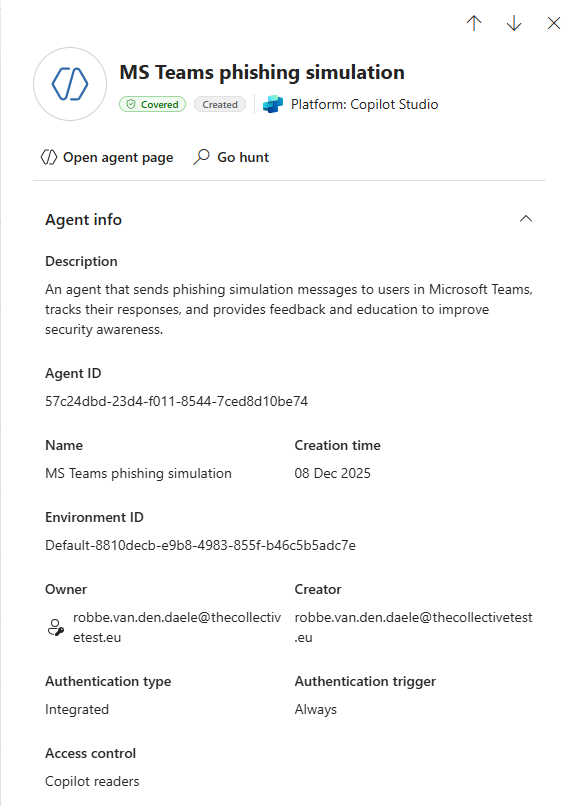
Do you remember the first challenge we discussed where we could not find the creator of a ’legacy’ agent application service principal using Entra ID? In the Defender XDR AI agents asset inventory you can see who created the agent in Copilot Studio!
But wait, in this Defender XDR view in my test environment, I find 7 agents created in Copilot Studio but only 5 Copilot Studio agents in Entra ID? And additionally, I have an Agent in Defender XDR called ‘CA Policy Assistant’ for which I do not find a related Agent Identity in Entra ID:
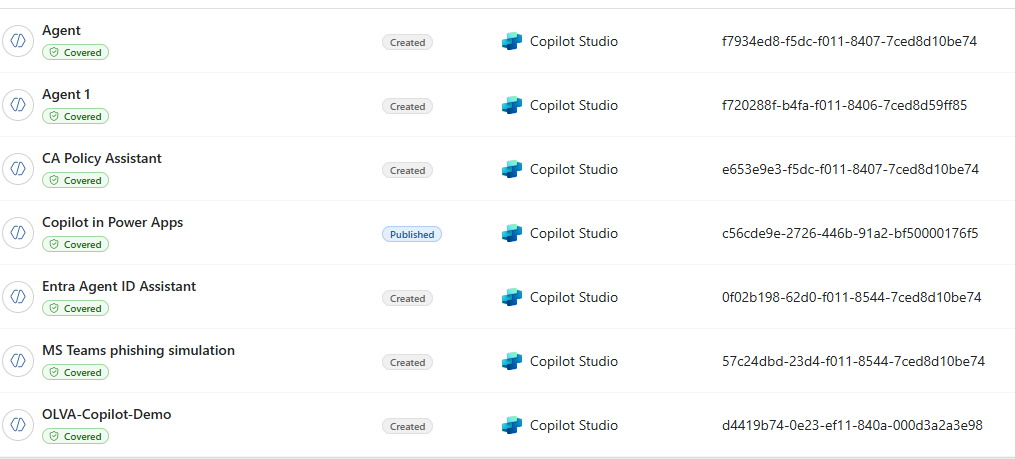
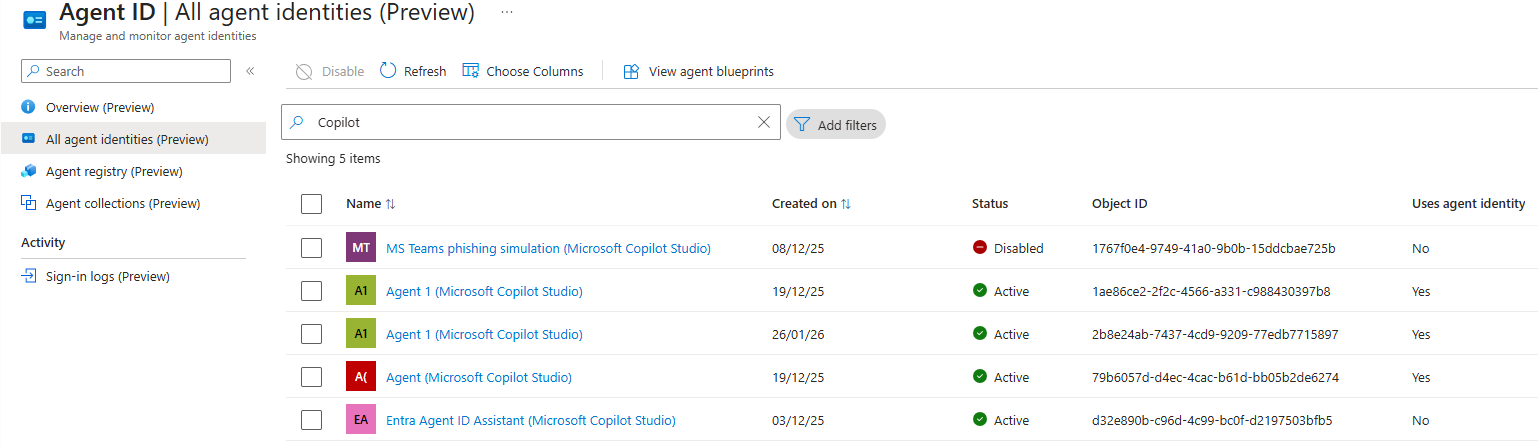
Confusing right? Well, I found out that not all agents in Copilot Studio create an Agent Identity (why that is I am still not sure), but also that the name of the Agent in Copilot Studio does not always match the name in of the related Entra Agent Identity. Even more, the name of the Agent Identity in Entra ID is also not unique. (Shoutout to Derk for the below screenshot)
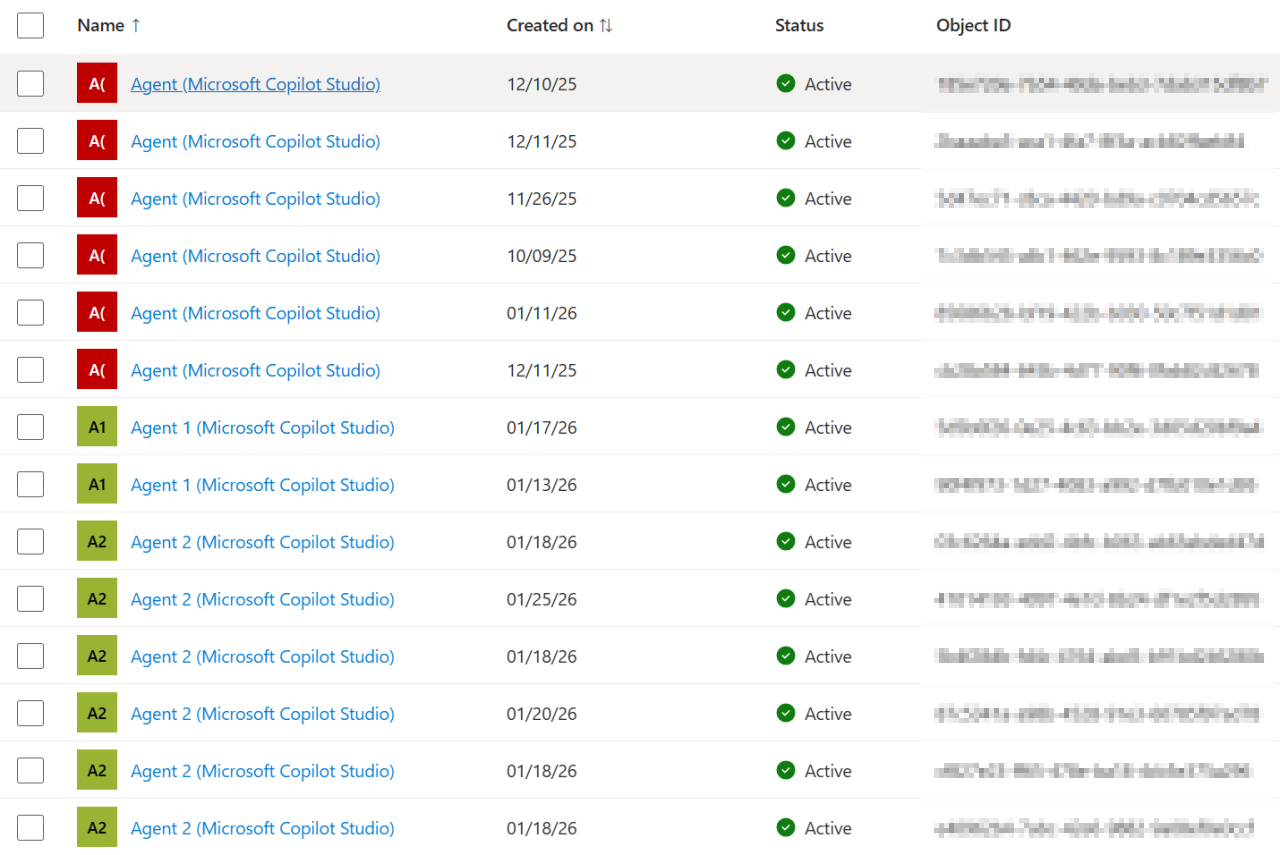

This makes it really hard for administrators to know which agent is actually using which agent identity in Entra ID.
The agent to agent identity correlation challenge
While it is hard to cross reference agents in Defender XDR inventory with their related Agent Identity in Entra ID using the admin portal, it is fairly easy to find using KQL. When you enabled the the AI Inventory in Defender XDR, a table will be populated called AIAgentsInfo where you can find the AgentAppId of the Agent. Tis is the AppId of the Agent Identity the agent uses in Entra ID.

The next challenge with this AgentAppId is knowing which table in Defender XDR to use to perform the identity lookups to. This is because depending if the Agent Identity is an application service principle or an actual Agent ID agent identity, the identity will or will not show up in the IdentityInfo table. Therefore, I found the most reliable way to correlate via ExposureGraphNodes.
Below you can find a query you can use to correlate the AI Agent in the Defender Inventory with the exact AI Identity used in Entra ID. In the KQL query you can see how we can find if the identity is either an agent identity or an application service principal via the ServicePrincipalType column.
 1AIAgentsInfo
 2| where TimeGenerated > ago(30d)
 3| summarize arg_max(TimeGenerated, *) by AIAgentId
 4| join kind=leftouter (
 5    ExposureGraphNodes
 6    | extend AadAppId = tostring(NodeProperties.rawData.appId)
 7    | extend AadObjectId = extract('objectid=(.*)"', 1, tostring(EntityIds))
 8    | where isnotempty( AadAppId )
 9    | project NodeLabel,
10        AadAppId,
11        AadObjectId,
12        AccountDisplayName = iff( isempty(NodeProperties.rawData.accountDisplayName), NodeName, NodeProperties.rawData.accountDisplayName),
13        AccountEnabled = NodeProperties.rawData.accountEnabled,
14        ServicePrincipalType = NodeProperties.rawData.servicePrincipalType
15) on $left.AgentAppId == $right.AadAppId
16| project AIAgentName, AIAgentId, CreatorAccountUpn, OwnerAccountUpns, AgentDescription, AgentAppId, AadObjectId, AIAgentIdentityName = AccountDisplayName, AccountEnabled, ServicePrincipalType
17| extend IdentityType = case(
18    ServicePrincipalType == "ServiceIdentity", "✅ Agent Identity",
19    ServicePrincipalType == "Application", "⚠️ Application Identity",
20    AadObjectId != AgentAppId, "⚠️ Application Identity",
21    isempty(AIAgentIdentityName), "❌ No Entra Identity", "N/A"
22)
23| extend AccountEnabled = case(
24    AccountEnabled == "true", "✅ True",
25    AccountEnabled == "false", "❌ False",
26    "❓Unknown"
27)
28| extend AIAgentName = strcat("🤖 ", AIAgentName), AIAgentIdentityName = strcat("🪪 ", AIAgentIdentityName)
29| project-away ServicePrincipalType, AadObjectId
30| sort by AIAgentName asc

Conclusion
In this blogpost you learned the basic features you should enable in you environment to know as an administrator who created specific agents and agent identities in Copilot Studio, and how to correlate them.
Future posts
As mentioned earlier, Copilot studio is not the only platform that creates agents. This means we will have to try and get the same insights for agents created via other platforms.
And what about the agent remediation process if an agent is compromised? I have a blogpost on this waiting to be posted as well.