
Remediating Agent Identities for Identity Admins and SOCs

Introduction
With Microsoft launching Agent ID at the end of 2025, a new kind of identities were born in Entra ID. These identities are specially built for dynamic requirements of AI Agents, and is therefore a completely new concept to understand for Identity Administrators. But more importantly, how is your organization going to respond if one of these new identities are compromised? We will go over it in this blogpost, focussing specifically on how to remediate the identities linked to the agent.
Agent ID - The basics
While this blogpost will not include a deep-dive into how Microsoft Agent ID works, we will cover some basics that are crucial to understand how we need to remediate a compromised agent identity.
Agent Identity concepts in Entra ID
To give identities to Agents in Microsoft Entra ID, Microsoft introduced a couple of new concepts. For this blogpost, you need to understand five of them.
Agent Identity Blueprint
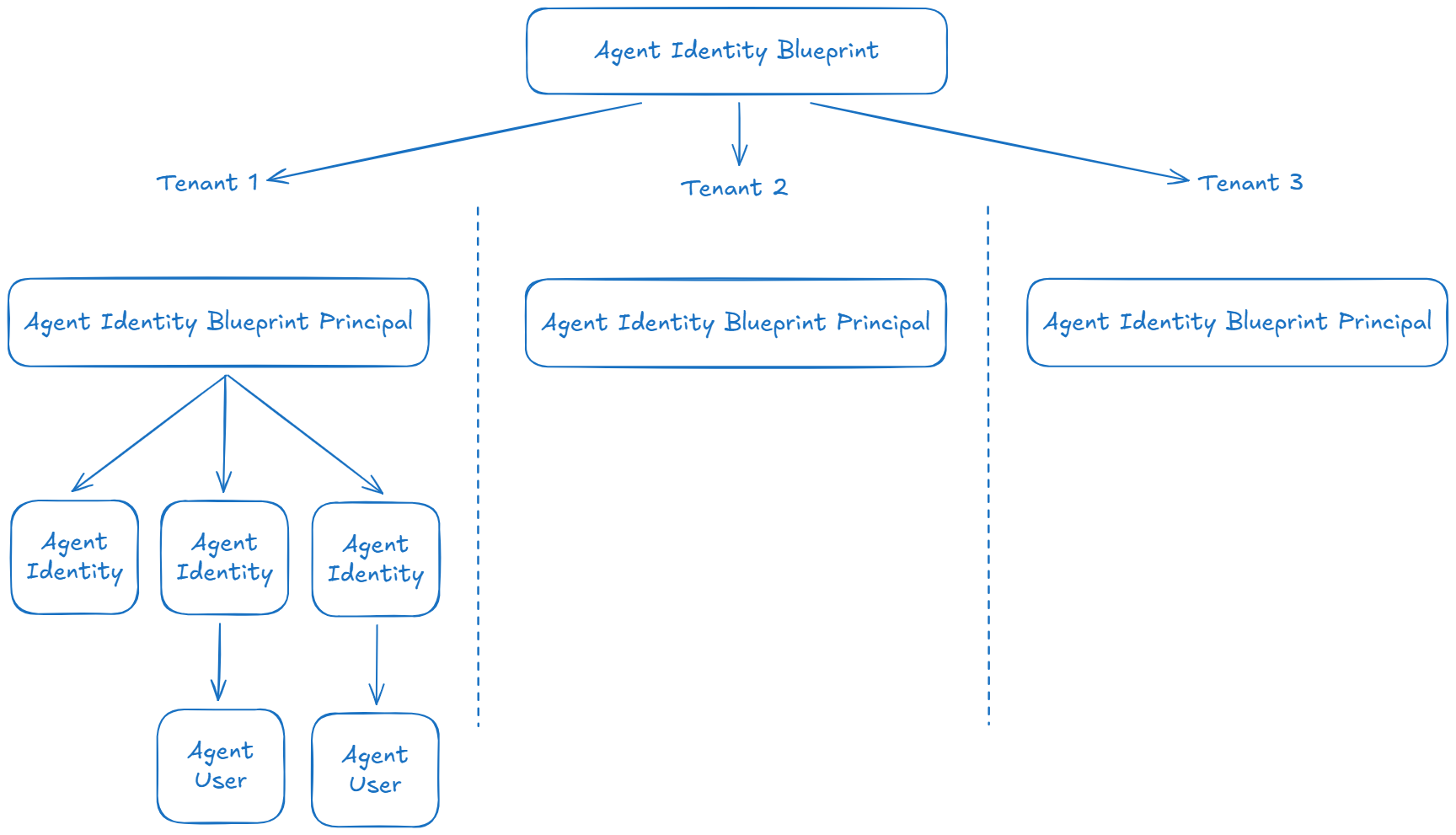
An agent identity blueprint is an object in Microsoft Entra ID that serves as a template for creating agent identities. It establishes the foundation for how agents are created, authenticated, and managed within an organization.
An agent identity blueprint serves four purposes:
- Blueprints are templates for agent identities
- Blueprints create agent identities - To provision and deprovision agent identities, a blueprint has:
- An OAuth client ID, used to request access tokens
- Credentials, used to request access tokens
AgentIdentity.CreateAsManager, a Microsoft Graph permission that enables the blueprint to create and remove agent identities
- Blueprints hold credentials for agent identities - Each agent identity doesn’t have its own credentials. Instead, the credentials used to authenticate an agent identity are configured on the blueprint. When an AI agent wants to perform an operation, the credentials configured on the blueprint are used to request an access token from Microsoft Entra ID.
- Blueprints are a container for agent identities - Identity administrators can apply policies and settings to agent identity blueprints that take effect for all agent identities created using the blueprint. Examples include:
- Conditional Access policies
- OAuth permissions
- Disabling blueprints
Agent Identity Blueprint Principal
An agent identity blueprint principal is an object in Microsoft Entra Agent ID that represents the presence of an agent identity blueprint within a specific tenant. When an agent identity blueprint application is added to a tenant, Microsoft Entra creates a corresponding principal object, which is the agent identity blueprint principal.
This principal serves several important roles:
- Token Issuance - When a blueprint requests tokens, the resulting token’s
oid(Object ID) claim references the agent identity blueprint principal - Audit Logging - Any action taken by an agent identity blueprint, is referenced in the audit logs as the agent identity blueprint principal.
Agent identity blueprints can also be configured as “multi tenant” and published to potential customers via Microsoft catalogs. Customers can then uses these blueprints and add them to their tenant in order to create agent identities.
Agent Identity Service Principal
Agent identities are modeled as single-tenant service principals with a new “agent” subtype classification (a bit like a managed identity also has a specific subtype classification). This design uses existing Microsoft Entra ID service principal infrastructure while adding agent-specific behaviors and constraints.
Agent identities inherit their protocol properties from their parent agent identity blueprint through the ParentID relationship.
Agent identity blueprint principal creates agent identity service principals using Microsoft Graph calls with app-only tokens and appropriate roles. The creation process establishes the parent-child relationship and configures the necessary Federated Identity Credential (FIC) relationships for impersonation.
Agent Identity
Agent identity is a special service principal serving as the primary account used by an AI agent to authenticate to various systems. It has unique identifiers - the object ID and the app ID, which always have the same value - which can be reliably used for authentication and authorization decisions. Agent identities don’t have a password. Instead, agent identities can only authenticate by presenting an access token issued to the service or platform on which the agent runs.
Agent Users
Agent users enable AI-powered applications to interact with systems and services that require user identities, while maintaining appropriate security boundaries and management controls. It allows organizations to manage those agent’s access using similar capabilities as they do for human users.
An agent user isn’t created automatically. It requires an explicit creation process that connects it to its parent agent identity. This parent-child relationship is fundamental to understanding how agent users function and are secured in Microsoft Entra. Once established, this relationship is immutable and serves as a cornerstone of the security model for agent users. The relationship is a one-to-one (1:1) mapping. Each agent identity can have at most one associated agent user, and each agent user is linked to exactly one parent agent identity, itself linked to exactly one agent identity blueprint application.
What was before the Agent ID era?
Before the Agent ID era, agents received an identity in Entra ID by using normal application service principals just like we knew them for years. If your organization was early in adopting AI Agents, you will probably already have these nonagent service principals in your tenant. If you want to find out of this is the case, you can go into the Entra Admin portal to Agent ID > All agent identities. Here you need to enable the ‘Uses agent identity’ column, which will have the ‘No’ value if the identity is still an ‘old’ nonagent service principal:
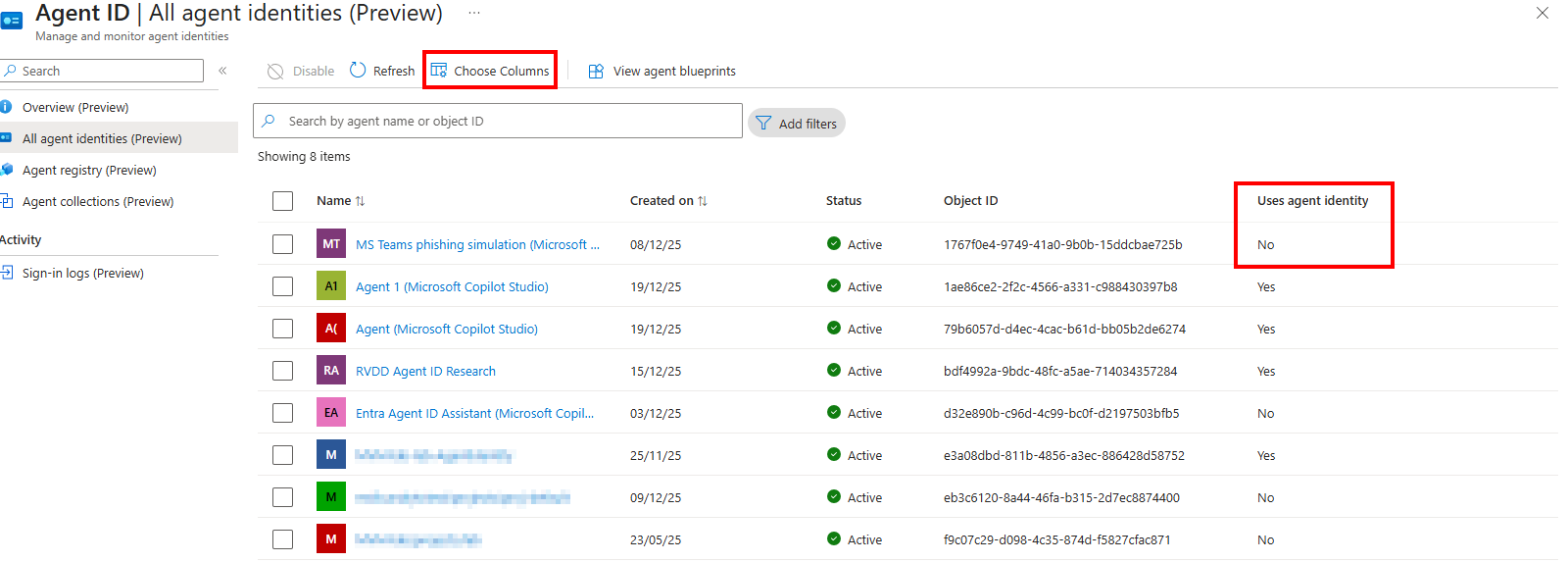
Important to note for this blogpost is that we will not focus on these types of Service Principals, since the remediation process for these are the same as other Service Principal objects.
How are Agent Identities created
Before we can understand how to remediate a compromised Agent Identity, we need to understand how these identities are created. Therefore in this section of the blogpost we will go over the steps to create the different Agent Identity types.
Create an Agent Identity Blueprint
Creating a functional agent identity blueprint in your tenant requires two steps:
- Create an
AgentIdentityBlueprintin the tenant. - Create an
AgentIdentityBlueprintPrincipalin the tenant.
Create the Agent Identity Blueprint
To create an Agent Identity Blueprint, we need the AgentIdentityBlueprint.ReadWrite.All permissions and use the beta/applications/microsoft.graph.agentIdentityBlueprint APi endpoint. In below script we also use the User.Read permissions to set your user as sponsor and owner of the Agent Blueprint.
 1$blueprintDisplayName = ""
 2
 3# Login to Microsoft Graph Command Line Tools
 4Connect-MgGraph -Scopes "AgentIdentityBlueprint.ReadWrite.All","User.Read"
 5
 6# Get my user ID
 7$currentUser = Get-MgContext | Select-Object -ExpandProperty Account
 8$user = Get-MgUser -UserId $currentUser
 9
10# Create the properties for the request
11$method = "POST"
12$uri = "https://graph.microsoft.com/beta/applications/microsoft.graph.agentIdentityBlueprint"
13$body = @{
14    "@odata.type" = "Microsoft.Graph.AgentIdentityBlueprint"
15    "displayName" = $blueprintDisplayName
16    "[email protected]" = @("https://graph.microsoft.com/v1.0/users/$($user.Id)")
17    "[email protected]" = @("https://graph.microsoft.com/v1.0/users/$($user.Id)")
18} | ConvertTo-Json -Depth 5
19
20$blueprintResponse = Invoke-MgGraphRequest -Method $method -Uri $uri -Body $body -ContentType "application/json"
21$blueprintResponse | ConvertTo-Json -Depth 10
Create the Agent Identity Blueprint Principal
Once we have the Agent Identity Blueprint, we need to create the Agent Identity Blueprint Principal in the tenant. For this we need the AgentIdentityBlueprintPrincipal.ReadWrite.All permissions with the beta/serviceprincipals/graph.agentIdentityBlueprintPrincipal API endpoint.
 1# Login to Microsoft Graph Command Line Tools
 2Connect-MgGraph -Scopes "AgentIdentityBlueprintPrincipal.ReadWrite.All"
 3
 4# Create the BP Principal using the new blueprint AppId
 5$method = "POST"
 6$uri = "https://graph.microsoft.com/beta/serviceprincipals/graph.agentIdentityBlueprintPrincipal"
 7$body = @{
 8    appId = $($blueprintResponse.appId)
 9} | ConvertTo-Json -Depth 5
10
11$blueprintPrincipalResponse = Invoke-MgGraphRequest -Method $method -Uri $uri -Body $body -Headers @{ "OData-Version" = "4.0" }
12$blueprintPrincipalResponse | ConvertTo-Json -Depth 10
Configuring the Agent Identity BLueprint
Once we have an Agent Identity Blueprint and it’s Principal object, we need to configure a couple more thinks in order to make the blueprint usable.
Add credentials
As explained in the beginning of the blogpost, we need credentials on the Agent Identity Blueprint, since it is via this blueprint and it’s credentials that we will authenticate and request tokens for Agent Identities and Agent Users. Just as you know with nonagent applications in Entra ID, the following credential types can be used:
- Manage identities - For AI agents that run on Azure (most secure according to the docs)
- Federated identity credentials - For AI agents that run on Kubernetes or other cloud providers
- Certificates / cryptographic keys
- Client secrets
Depending on where the Agents and the backend code of the application will live, you will probably use one of the first three credential types in production environments. While I strongly discourage using client secrets in production setups, I will use client secrets during this blogpost in order to explain the agent concepts more easily.
Do not use client secrets as shown in below example for production usage. Please refer to Configure credentials for the agent identity blueprint if you want to learn how to configure other credential types
To add or remove credentials from an Agent Identity Blueprint we need the AgentIdentityBlueprint.AddRemoveCreds.All scope and use the beta/applications/<blueprintAppId>/addPassword API endpoint.
 1$blueprintAppId = $($blueprintResponse.appId)
 2$secretName = ""
 3$endDate = (Get-Date).AddYears(1).ToString("o")  # 1 year from now, in ISO 8601 format
 4
 5# Login to Microsoft Graph Command Line Tools
 6Connect-MgGraph -Scopes "AgentIdentityBlueprint.AddRemoveCreds.All"
 7
 8# Construct the password credential
 9$passwordCredential = @{
10    displayName = $secretName
11    endDateTime = $endDate
12}
13
14$method = "POST"
15$uri = "https://graph.microsoft.com/beta/applications/$blueprintAppId/addPassword"
16$body = $passwordCredential | ConvertTo-Json -Depth 5
17
18$response = Invoke-MgGraphRequest -Method $method -Uri $uri -Body $body -Headers @{ "OData-Version" = "4.0" }
19$response | ConvertTo-Json -Depth 10
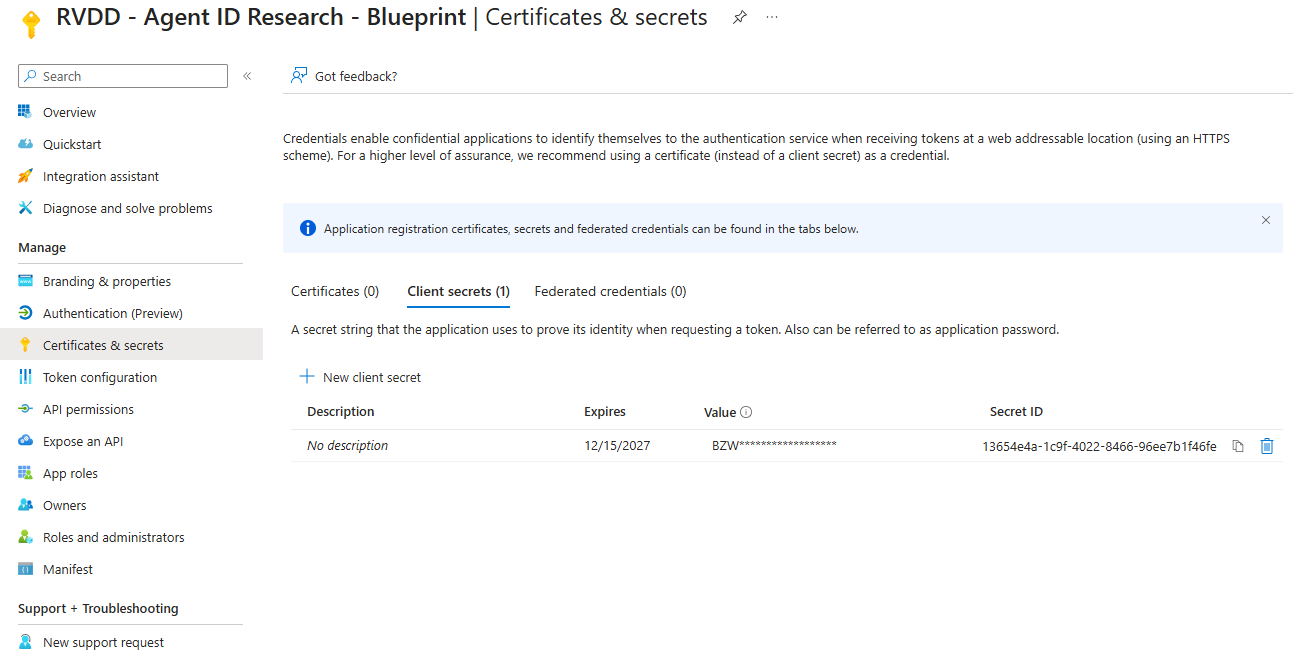
When successful, you should see a new credential on the Agent Identity Blueprint App Registration:
Configure identifier URL and scope
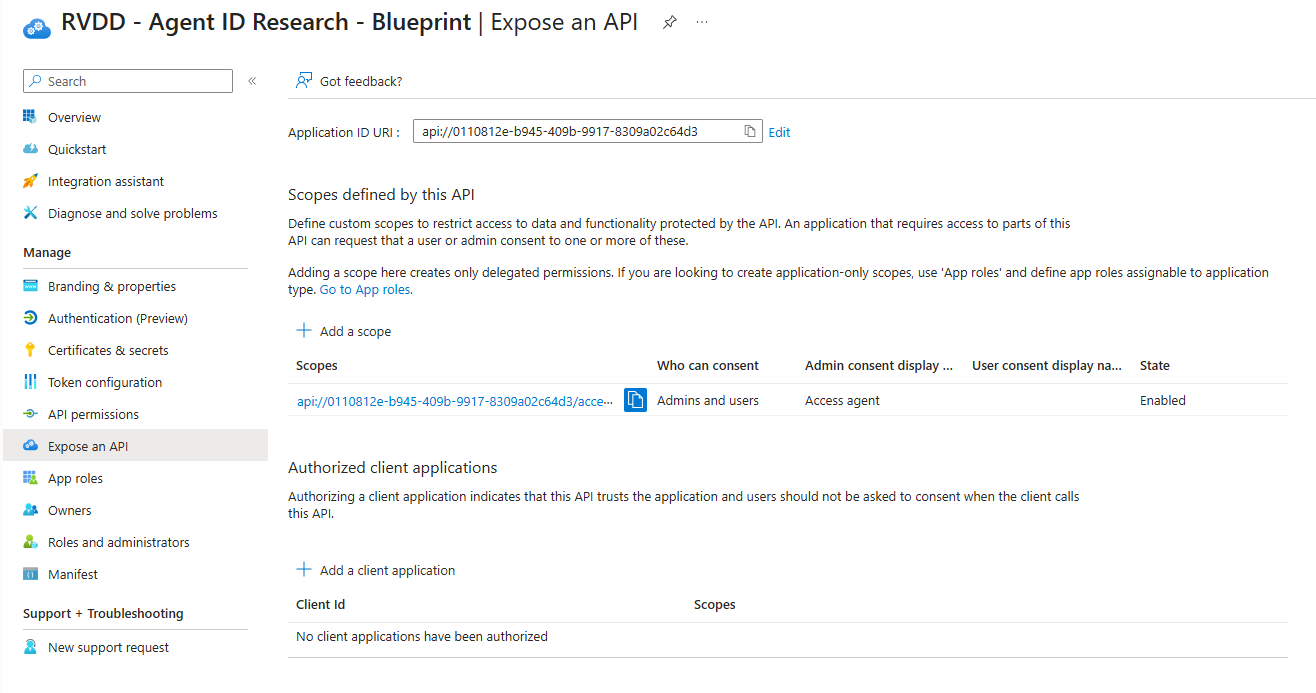
In order to receive incoming requests from users and other agents, we need to define an identifier URI and OAuth scope for the Agent Identity Blueprint. For the identifier URL, the Blueprint AppId needs to be used, while the scope value is set to access_agent with a random GUID.
To create the request, we need AgentIdentityBlueprint.ReadWrite.All permissions and use the https://graph.microsoft.com/beta/applications/<blueprintAppId> API endpoint
 1$identifierUri = "api://$blueprintAppId"
 2$scopeId = [guid]::NewGuid()
 3
 4# Login to Microsoft Graph Command Line Tools
 5Connect-MgGraph -Scopes "AgentIdentityBlueprint.ReadWrite.All"
 6
 7# Construct the OAuth2 permission scope
 8$obj = @{
 9    identifierUris = @("$identifierUri")
10    api = @{
11        oauth2PermissionScopes = @(
12            @{
13                adminConsentDescription = "Allow the application to access the agent on behalf of the signed-in user."
14                adminConsentDisplayName = "Access agent"
15                id = $scopeId
16                isEnabled = $true
17                type = "User"
18                value = "access_agent"
19            }
20        )
21    }
22}
23
24$method = "PATCH"
25$uri = "https://graph.microsoft.com/beta/applications/$blueprintAppId"
26$body = $obj | ConvertTo-Json -Depth 5
27
28$response = Invoke-MgGraphRequest -Method $method -Uri $uri -Body $body -Headers @{ "OData-Version" = "4.0" }
29$response | ConvertTo-Json -Depth 10
When successful, you should see the new API scope on the Agent Identity Blueprint App Registration:
Create an Agent Identity
Once the Agent Identity Blueprint is fully configured, we can use the Blueprint to create Agent Identities. As mentioned earlier in the blog, an Agent Identity Blueprint by default has the AgentIdentity.CreateAsManager permission that enables the blueprint to create and remove Agent Identities. Therefore, we first need to get an access token of the Agent Identity Blueprint we just created with the configured credentials.
 1$tenantId = ""
 2$blueprintObjectId = $blueprintAppId
 3$clientSecret = ""
 4$scope = "https://graph.microsoft.com/.default"
 5$tokenEndpoint = "https://login.microsoftonline.com/$tenantId/oauth2/v2.0/token"
 6
 7# Manually form-encode the body string
 8$body = "client_id=$blueprintObjectId&scope=$([uri]::EscapeDataString($scope))&client_secret=$([uri]::EscapeDataString($clientSecret))&grant_type=client_credentials"
 9
10$response = Invoke-WebRequest -Method POST -Uri $tokenEndpoint -ContentType "application/x-www-form-urlencoded" -Body $body
11# Parse JSON
12$blueprintTokenResponse = $response.Content | ConvertFrom-Json
13$blueprintAccessToken = $blueprintTokenResponse.access_token
14$blueprintAccessToken
Now that we have the access token, we can create an Agent Identity. Note that we set you user account as sponsor of the Agent Identity again in below example.
 1$uri = "https://graph.microsoft.com/beta/serviceprincipals/Microsoft.Graph.AgentIdentity"
 2$identityDisplayName = ""
 3$blueprintObjectId = $blueprintAppId
 4$userId = $($user.Id)
 5
 6$body = @{
 7  displayName = $identityDisplayName
 8  agentIdentityBlueprintId = $blueprintObjectId
 9  "[email protected]" = @("https://graph.microsoft.com/v1.0/users/$userId")
10} | ConvertTo-Json -Depth 5
11
12$headers = @{
13    Authorization = "Bearer $blueprintAccessToken"
14    "OData-Version" = "4.0"
15    "Content-Type" = "application/json"
16}
17
18$response = Invoke-WebRequest -Method POST -Uri $uri -Body $body -Headers $headers
19$agentIdentityId = $response.id
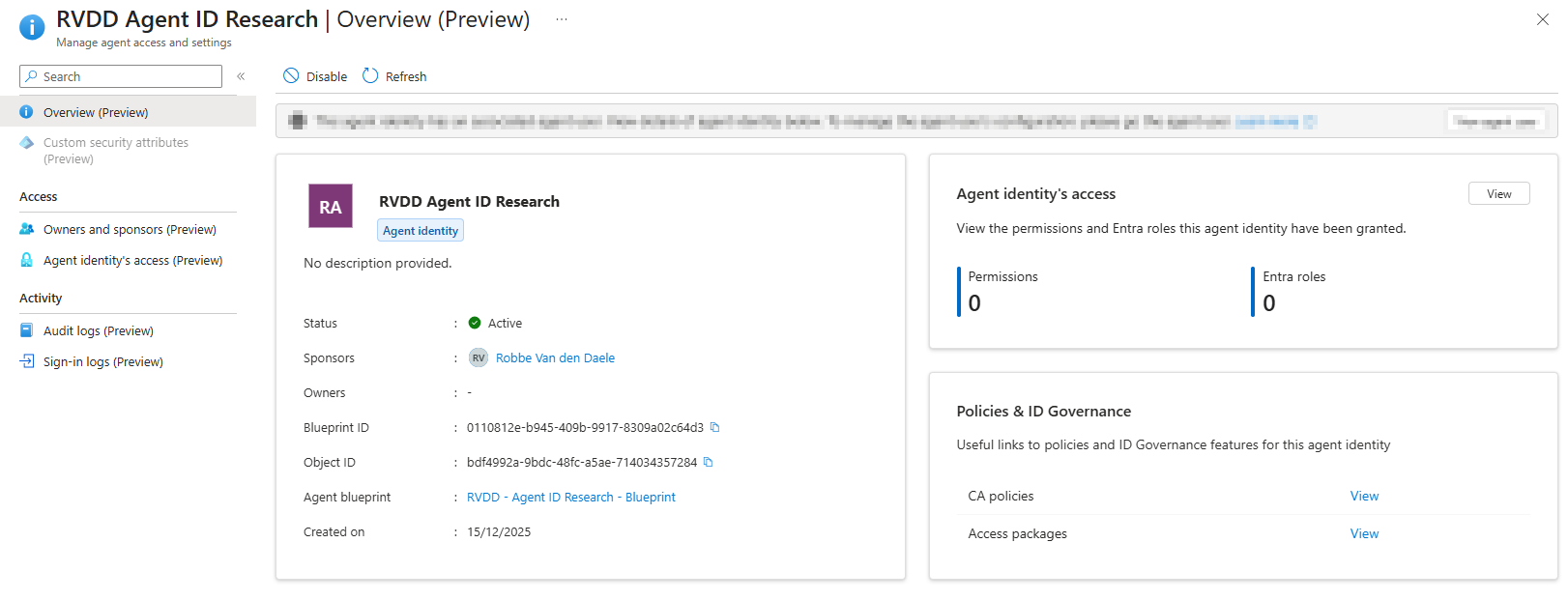
As a result, you should now see a new Agent Identity in the Agent ID blade of the Entra Admin portal.
Request Agent Identity tokens using Autonomous App Flow
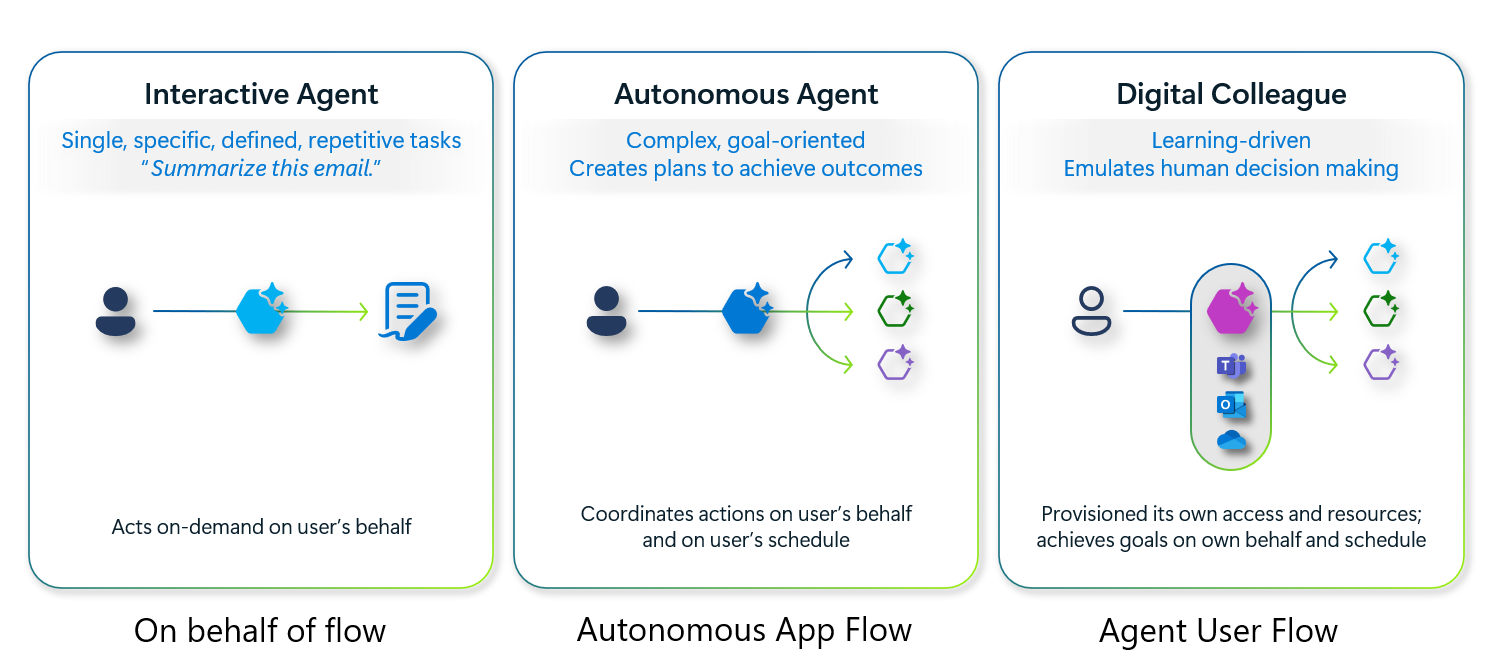
To demonstrate how an autonomous agent would request access tokens, we will show how to get these access tokens using the Autonomous App Flow. Note that there are in total three flows you can use:
- Agent on-behalf of flow: Agents operating on behalf of regular users (interactive agents)
- Autonomous app flow: App-only operations enable agent identities to act autonomously without user context
- Agent user flow: Agent operating on their own behalf using user principals created specifically for agents
Just as we did for creating the Agent Identity, we first need to have an access token for the Agent Identity Blueprint. In this access token we need to use a specific scope api://AzureADTokenExchange/.default used exchange tokens for the Agent Identity.
 1$tenantId = ""
 2$blueprintObjectId = $blueprintAppId
 3$clientSecret = ""
 4$agentIdentityObjectId = $agentIdentityId
 5$scope = "api://AzureADTokenExchange/.default"
 6$tokenEndpoint = "https://login.microsoftonline.com/$tenantId/oauth2/v2.0/token"
 7
 8# Manually form-encode the body string
 9$body = "client_id=$blueprintObjectId&scope=$([uri]::EscapeDataString($scope))&client_secret=$([uri]::EscapeDataString($clientSecret))&grant_type=client_credentials&fmi_path=$agentIdentityObjectId"
10
11$response = Invoke-WebRequest -Method POST -Uri $tokenEndpoint -ContentType "application/x-www-form-urlencoded" -Body $body
12# Parse JSON
13$blueprintTokenResponse = $response.Content | ConvertFrom-Json
14$blueprintAccessToken = $blueprintTokenResponse.access_token
15$blueprintAccessToken
And now that we have the access token for the Identity Blueprint, we can request a token for the Agent Identity
 1$tenantId = ""
 2$agentIdentityObjectId = $agentIdentityId
 3$scope = "https://graph.microsoft.com/.default"
 4$tokenEndpoint = "https://login.microsoftonline.com/$tenantId/oauth2/v2.0/token"
 5
 6
 7# Manually form-encode the body string
 8$body = "client_id=$agentIdentityObjectId&scope=$([uri]::EscapeDataString($scope))&grant_type=client_credentials&client_assertion_type=urn:ietf:params:oauth:client-assertion-type:jwt-bearer&client_assertion=$blueprintAccessToken"
 9
10$response = Invoke-WebRequest -Method POST -Uri $tokenEndpoint -ContentType "application/x-www-form-urlencoded" -Body $body
11# Parse JSON
12$agentIdentityTokenResponse = $response.Content | ConvertFrom-Json
13$agentIdentityAccessToken = $agentIdentityTokenResponse.access_token
14$agentIdentityAccessToken
Creating an Agent User
Creating an Agent User is a little bit more complex then creating an Agent Identity. Before we can create an Agent User, we need to allow our blueprint the AgentIdUser.ReadWrite.IdentityParentedBy scope. This is because Microsoft by default does not want to give each blueprint the permissions to create Agent Users, as Agent Users should only be used for application flows requiring a regular user. At the time of writing this blog, you cannot add this permission via the GUI.
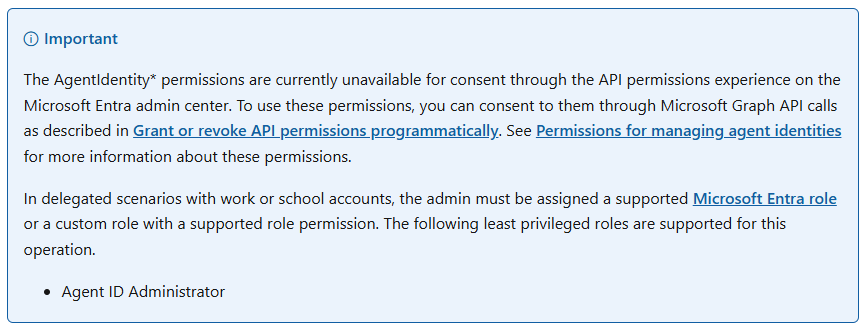
Therefore, we need to add the API permissions manually via the Microsoft Graph API instead.
Granting the permissions to a Blueprint
Before we can grant the permissions to a Blueprint, we need to known the identifier for the AgentIdUser.ReadWrite.IdentityParentedBy scope. For this, I like to use the Graph permissions website created by Merill for this. On this website you can see the Identifiers for this scope in both an application and delegated context. Since we need to grant this permission to an Agent ID Blueprint, we need the application context identifier ‘4aa6e624-eee0-40ab-bdd8-f9639038a614’.
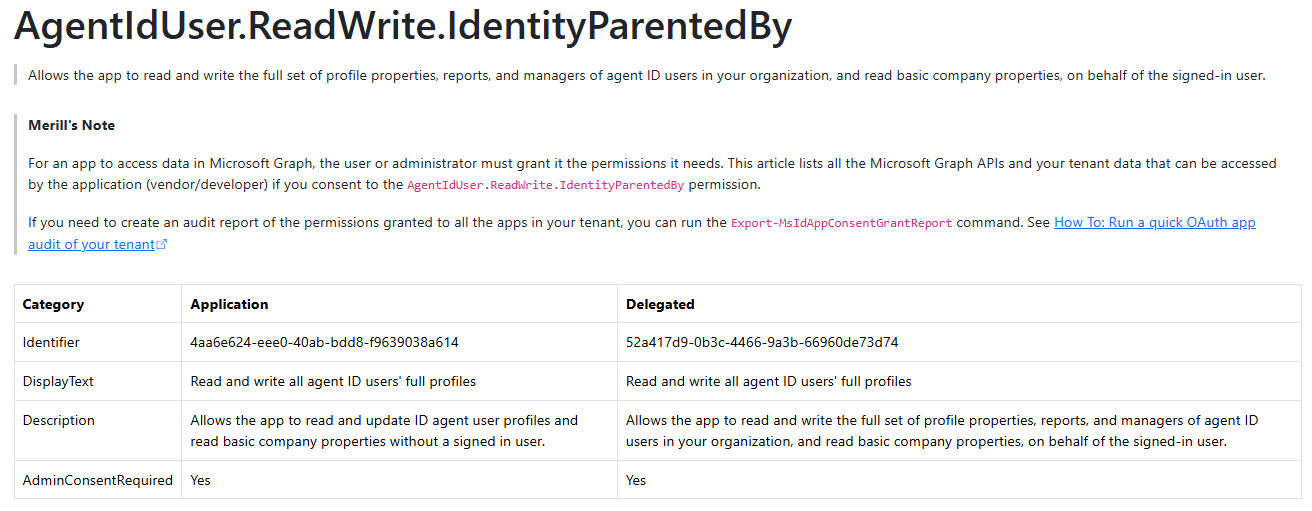
 1Connect-MgGraph -Scopes "AppRoleAssignment.ReadWrite.All"
 2
 3$msGraphObjectId = ""
 4# principalId = The Blueprint Enterprise App Object ID
 5# resourceId = The Microsoft Graph Object ID
 6# appRoleID = The Application identifier for 'AgentIdUser.ReadWrite.IdentityParentedBy'
 7$body = @{
 8  principalId = $blueprintObjectId
 9  resourceId = $msGraphObjectId
10  appRoleId = "4aa6e624-eee0-40ab-bdd8-f9639038a614"
11} | ConvertTo-Json -Depth 5
12
13Invoke-MgGraphRequest -Method POST -Uri "https://graph.microsoft.com/v1.0/servicePrincipals/$blueprintObjectId/appRoleAssignedTo" -Body $body -ContentType 'application/json'
Creating the Agent User via the Blueprint
Now that the Blueprint is configured to create Agent Users, we can create a new Agent User with the Blueprint. Just as with an Agent Identity, we first need to get tokens from the Agent Blueprint:
 1$tenantId = ""
 2$blueprintObjectId = $blueprintAppId
 3$clientSecret = ""
 4$scope = "https://graph.microsoft.com/.default"
 5$tokenEndpoint = "https://login.microsoftonline.com/$tenantId/oauth2/v2.0/token"
 6
 7# Manually form-encode the body string
 8$body = "client_id=$blueprintObjectId&scope=$([uri]::EscapeDataString($scope))&client_secret=$([uri]::EscapeDataString($clientSecret))&grant_type=client_credentials"
 9
10$response = Invoke-WebRequest -Method POST -Uri $tokenEndpoint -ContentType "application/x-www-form-urlencoded" -Body $body
11# Parse JSON
12$blueprintTokenResponse = $response.Content | ConvertFrom-Json
13$blueprintAccessToken = $blueprintTokenResponse.access_token
14$blueprintAccessToken
With this access token we can now create a new Agent User in the name of the Blueprint
 1$uri = "https://graph.microsoft.com/beta/users/microsoft.graph.agentUser"
 2$identityDisplayName = ""
 3$userPrincipalName = ""
 4$mailNickname = ""
 5$agentIdentityObjectId = $agentIdentityId
 6
 7
 8$body = @{
 9    displayName = $identityDisplayName
10    userPrincipalName = $userPrincipalName
11    identityParentId = $agentIdentityObjectId
12    mailNickname = $mailNickname
13    accountEnabled = $true
14} | ConvertTo-Json -Depth 5
15
16
17$headers = @{
18    Authorization = "Bearer $accessToken"
19    "OData-Version" = "4.0"
20    "Content-Type" = "application/json"
21}
22
23$response = Invoke-WebRequest -Method POST -Uri $uri -Body $body -Headers $headers
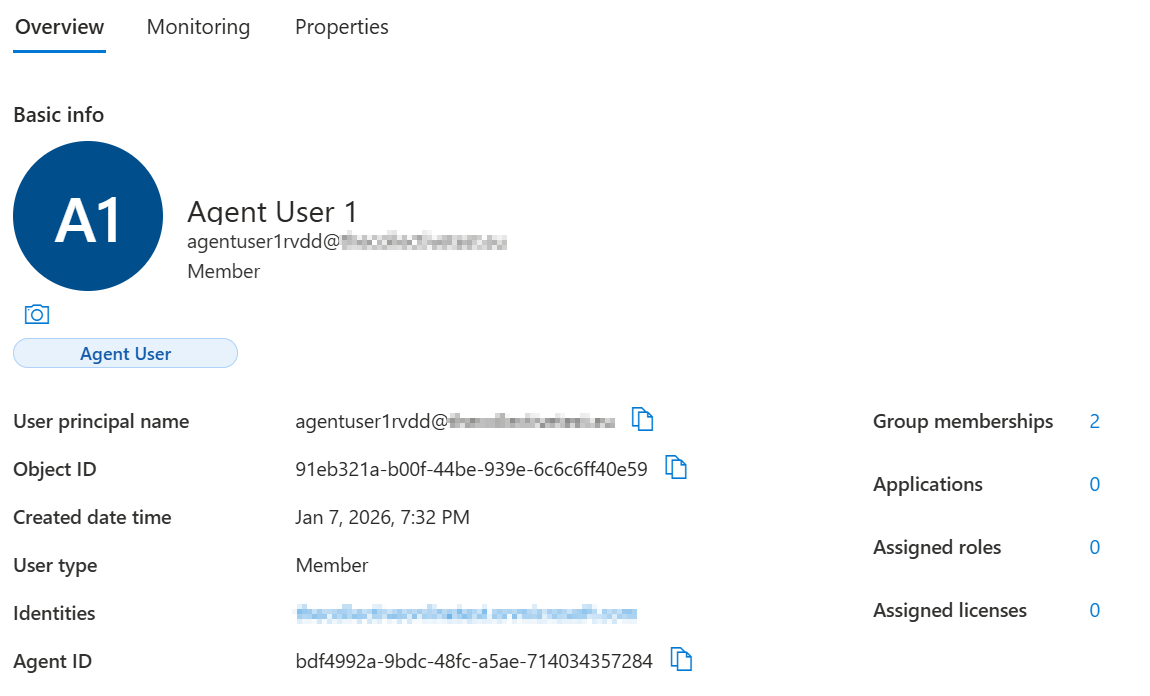
If all worked well, you should now see a new user in your Entra ID tagged as an Agent User:
Remediating the different Agent Identities
Now that we know how Agent Identities are created, we can better understand how we need to remediate them. As you learned from creating Agent Identities, there are a couple of important points to remember:
- There are two types of Agent Identities thar are eventually used by an AI Agent to access resources:
- Agent Identity: A special type of ‘Service Principal’ in Entra ID
- Agent User: A special type of ‘User Object’ in Entra ID
- For both types of Agent Identities, an Agent Blueprint is crucial for:
- Governing the Agent Identities (provisioning, deleting, assigning permissions, etc.)
- Providing access tokens to the Agent Identities (since a federated credential link is created between the Blueprint and Agent Identity)
Based on this, we need to remediate the different objects in different way depending on the compromise scenario.
Remediate an Agent User
First of all, we are going to start with how to remediate a compromised Agent User account. An Agent User is like a normal user account, but does not have a password or authentication methods configured. Instead, you can only get access tokens for an Agent User by using the related Agent Identity and Agent Blueprint. Therefore, there are a couple of things you can and cannot do to remediate an Agent User:
You cannot:
- Reset and Agent User password
- Reset and Agent User authentication methods
You can:
- Disable the Agent User account
- Block the Agent User via Conditional Access policies.
Confirm Agent User compromise (conditional access block)
To block an Agent User with conditional access policies, the only option (for now) is to block all Agent Users to all resources.
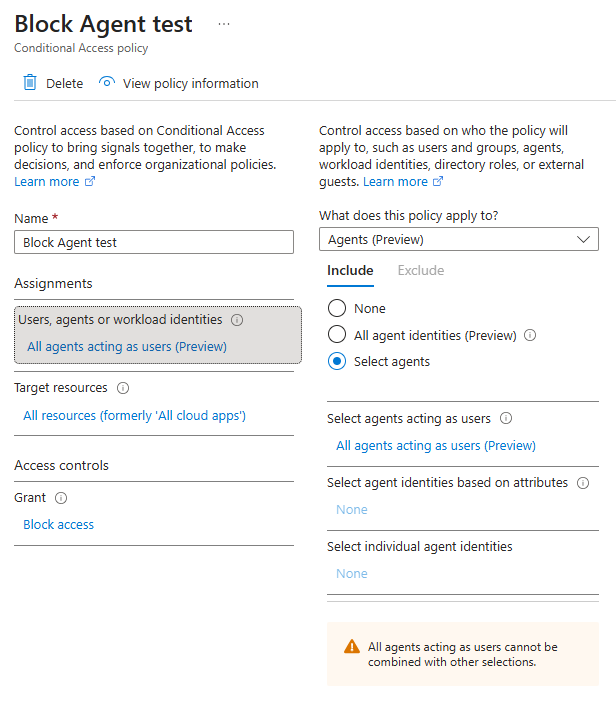
There does not seem to be an option to filter for specific Agent Users, or block based on Identity Protection Risk Signals.
Microsoft do mention that more features are coming after the preview phase, so things might change quickly.
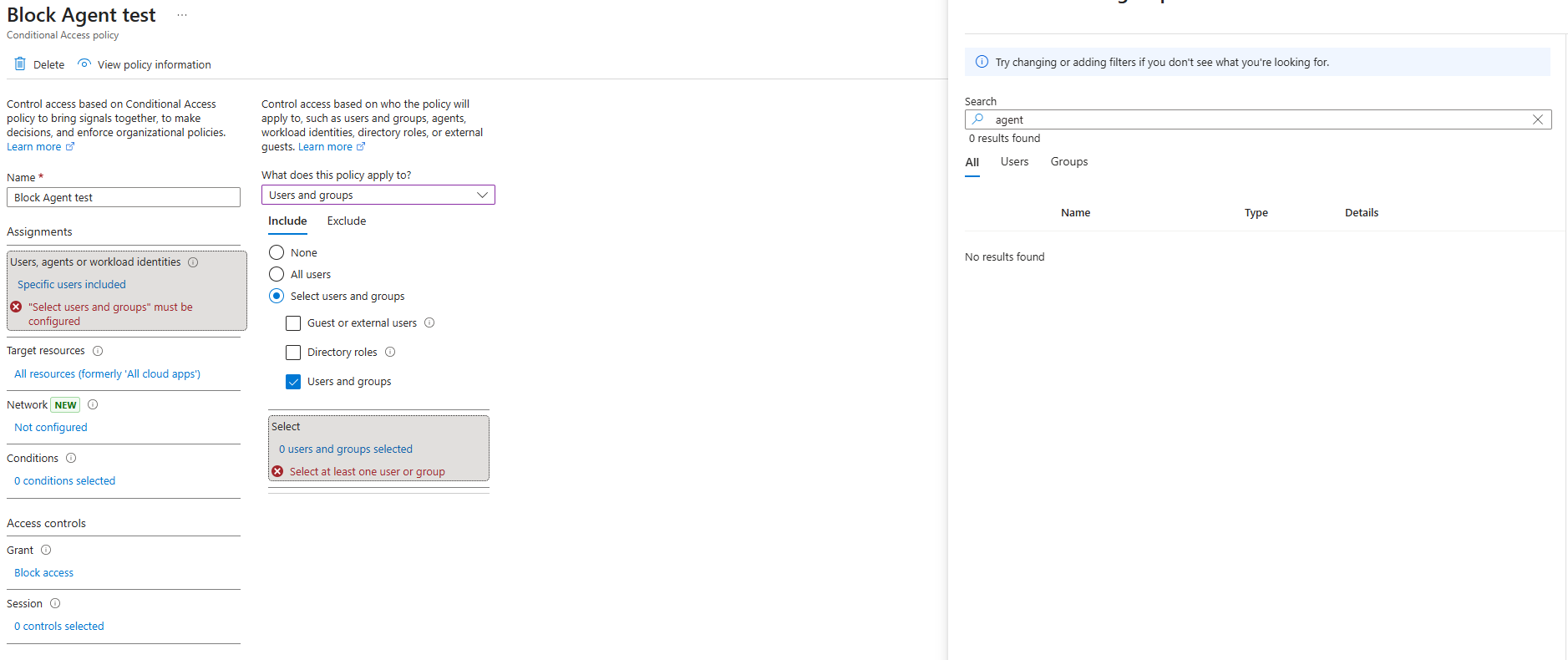
When checking the conditional access policy options when selecting ‘Users and groups’, the Agent Users also do not seem to be included in the list of users you can select. Meaning we will have to wait for more granular support.
Disabling Agent User
Since conditional access is currently not great for blocking Agent Users, the best thing to do is to disable the Agent User in Entra ID. This can either be done via the GUI or the Microsoft Graph API.
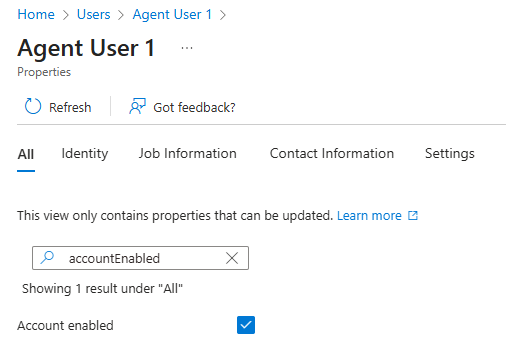
Remediate an Agent Identity
When an Agent Identity is compromised, we need to use the new Agent ID features in order to remediate the Agent Identity and block it from logging in. Just as with an Agent User, there are again two options but how to do it differs.
Confirm Agent Identity compromise (conditional access block)
When using Identity Protection capabilities, you can confirm an Agent Identity compromise and use Conditional Access policies to block the compromised identity. This can be done by using the riskyAgent Beta Graph API Call.
 1Connect-MgGraph -Scopes "IdentityRiskyAgent.ReadWrite.All"
 2
 3$body = @'
 4{
 5  "agentIds": [
 6    "<agentid>"
 7  ]
 8}
 9'@
10
11# Confirm agent compromise
12Invoke-MgGraphRequest -Method POST -Uri "https://graph.microsoft.com/beta/identityProtection/riskyAgents/confirmCompromised" -Body $body -ContentType "application/json" -Verbose
13
14# Verify compromise
15$response = Invoke-MgGraphRequest -Method GET -Uri "https://graph.microsoft.com/beta/identityProtection/agentRiskDetections"
16$response.value
If all went well, you can see the risky agent in the Identity Protection blade.
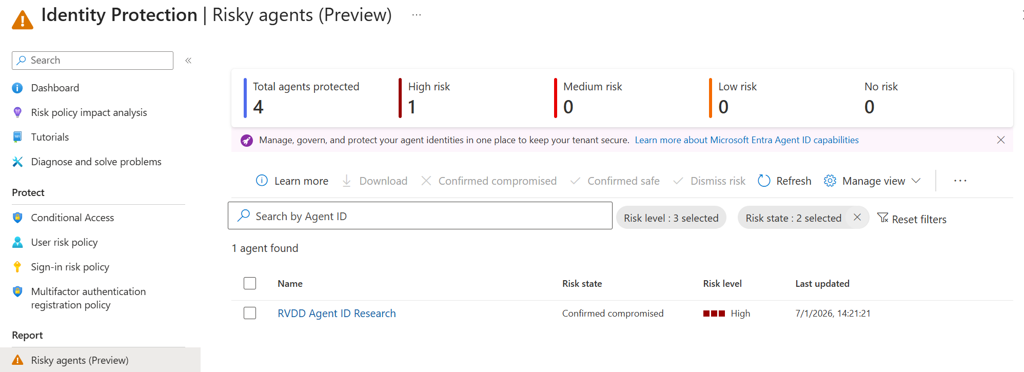
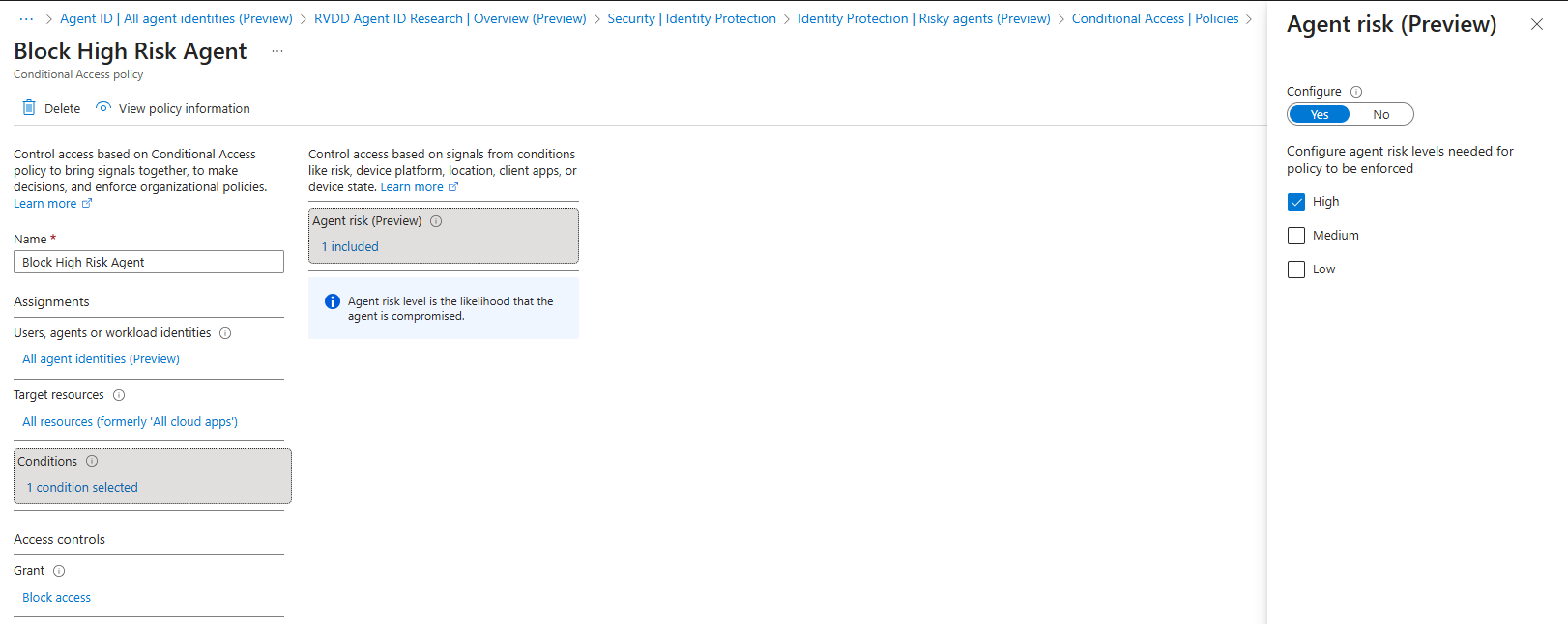
To eventually block agents that are confirmed compromised, create a Conditional Access policy that blocks high risk agents as shown below:
Disabling Agent Identity
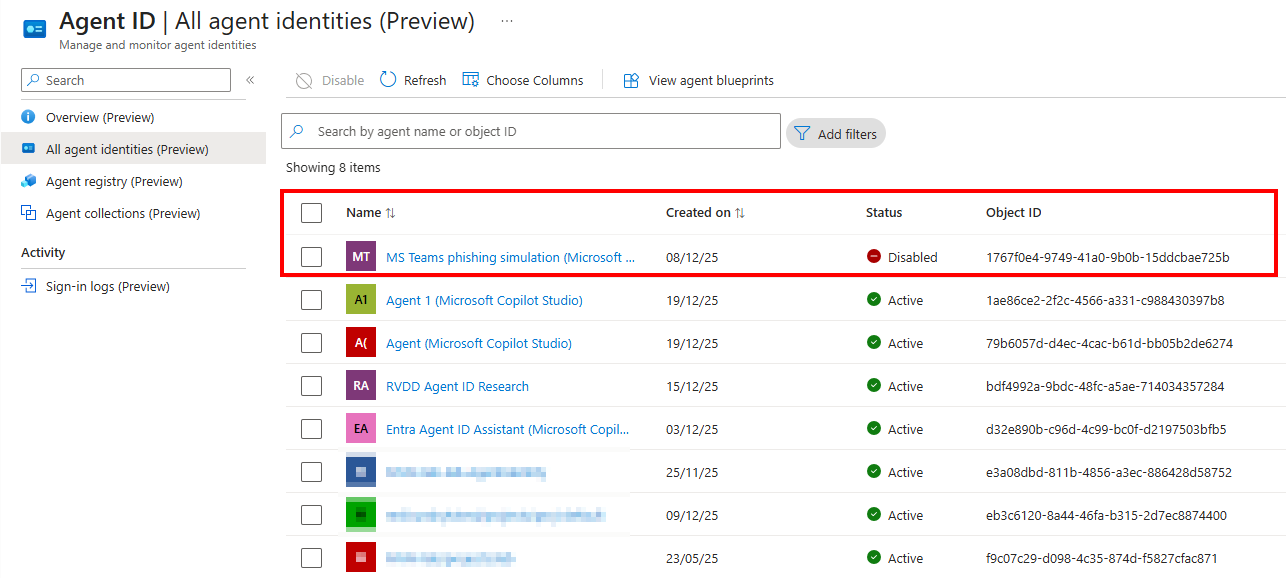
The second way to remediate an Agent Identity is to disable it. This can be done in the UI by going to Agent ID > All agent identities > Select the Agent Identity > Disable:
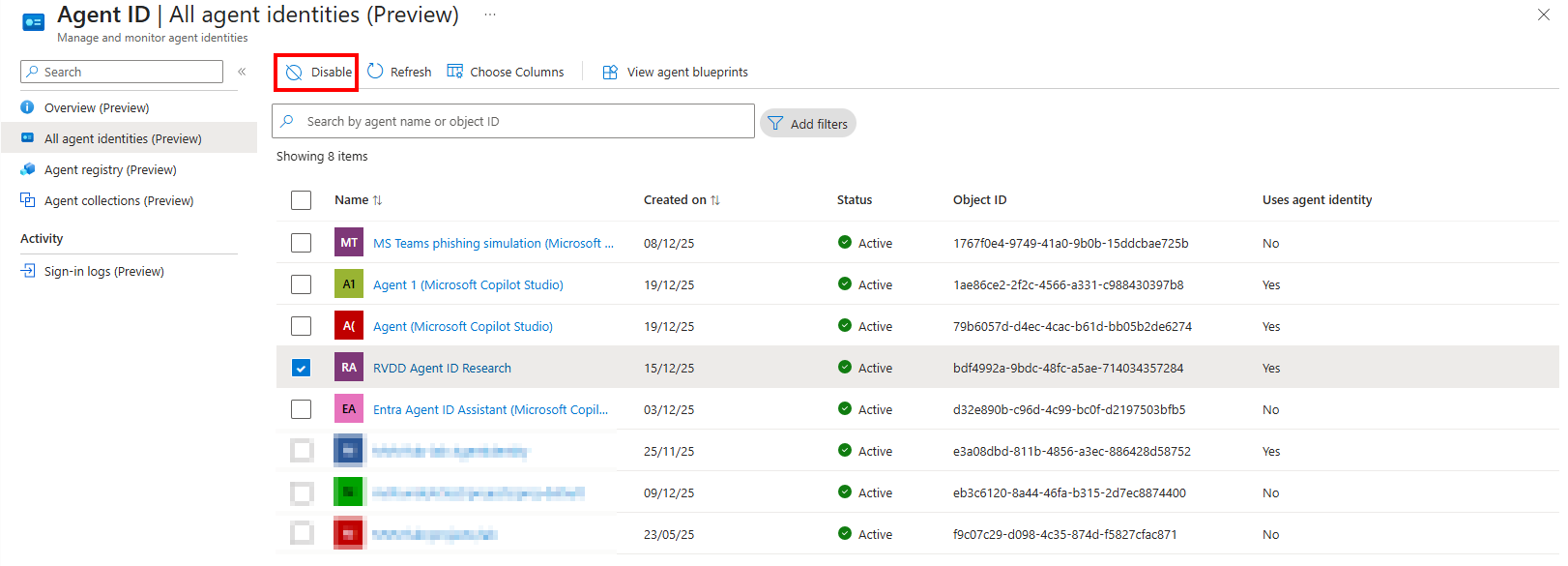
To do this via the Graph API, you can use the Update agentIdentity Beta Graph API and set the ‘accountEnabled’ property to false.
 1Connect-MgGraph -Scopes "AgentIdentity.ReadWrite.All"
 2
 3$agentIdentityObjectId = "<agent identity object ID>"
 4
 5$body = @'
 6    {
 7        "accountEnabled": false
 8    }
 9'@
10
11Invoke-MgGraphRequest -Method PATCH -Uri "https://graph.microsoft.com/beta/servicePrincipals/$agentIdentityObjectId/microsoft.graph.agentIdentity" -Body $body -ContentType 'application/json'
When completed, you will see that the Agent Identity is shown as disabled in the Entra ID portal:
Is an Agent User blocked when an Agent Identity is?
Since an Agent User is always linked to an Agent Identity, and we need access tokens of the Agent Identity to request access tokens for the Agent User, we can ask ourself the question if an Agent User is blocked when an Agent Identity is. After doing multiple tests, I found that it depends how the Agent Identity was remediated and blocked.
The best way, is to disable the Agent Identity account as explained earlier in this post. If the Agent Identity is disabled, you cannot request any new access tokens for it since the account has been disabled.
But if you block the Agent Identity in Conditional Access policies, I found that you can still use the Agent Identity and get access tokens which you can use to request access tokens for the related Agent User. Meaning that blocking the Agent Identity related to an Agent User in conditional access does not block the related Agent User, even though a compromised Agent Identity give direct access to the related Agent User.
This is because when we request an access token for the Agent Identity that will be used to request an access token for the Agent User, we need to use the Token Exchange scope api://AzureADTokenExchange/.default in our request. For this scope we can read in the Microsoft Learn pages that Conditional Access does not apply when an Agent Identity performs and intermediate token exchange at the AAD Token Exchange Endpoint:
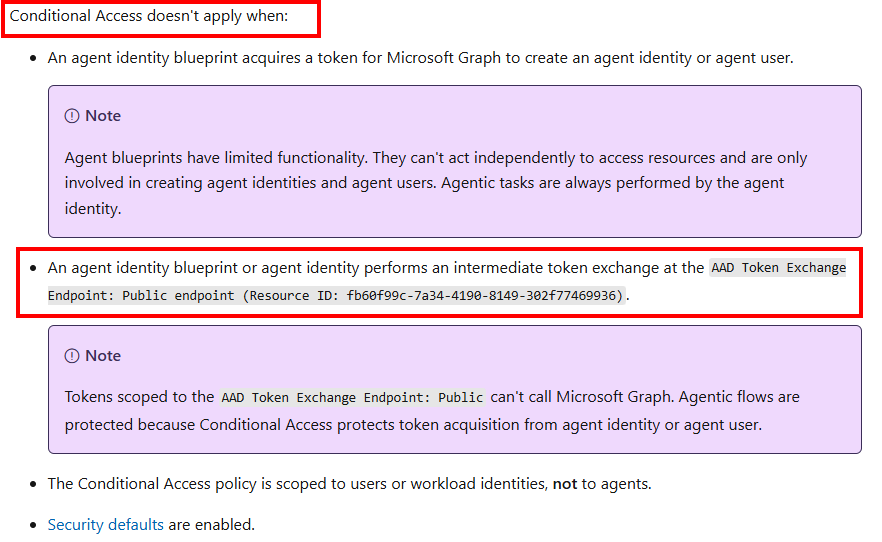
Meaning that conditional access policies are not applied when requesting new access tokens for a blocked Agent Identity when that identity is used to access an Agent User.
I reported this behavior as a vulnerability to MSRC, but they decided to classify it as ‘By Design’.
Remediate an Agent Blueprint
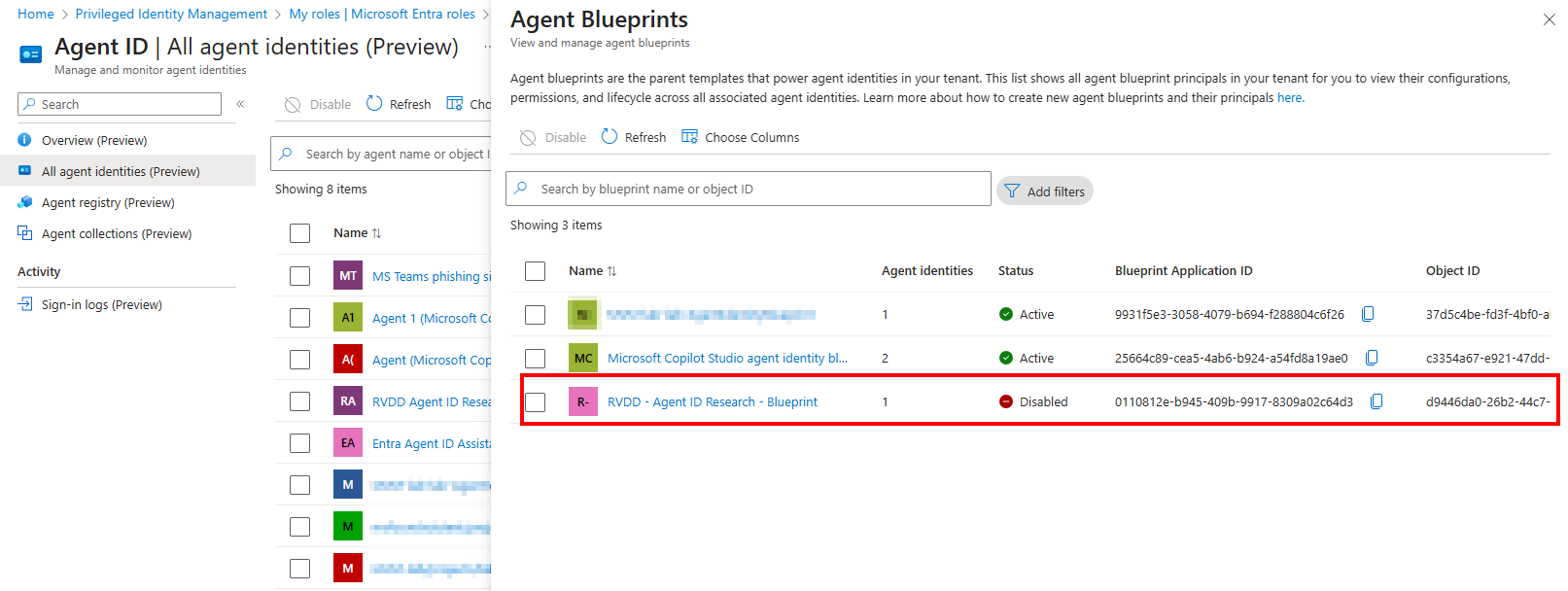
Just as with the Agent Identity, there are two options to remediate a compromised Agent Blueprint. Since it is a service principal, we can choose to disable the service principal of the blueprint effectively blocking everything regarding the blueprint, or we can target the blueprint in conditional access and block all Agent Identities related to the blueprint.
Blocking via Conditional Access
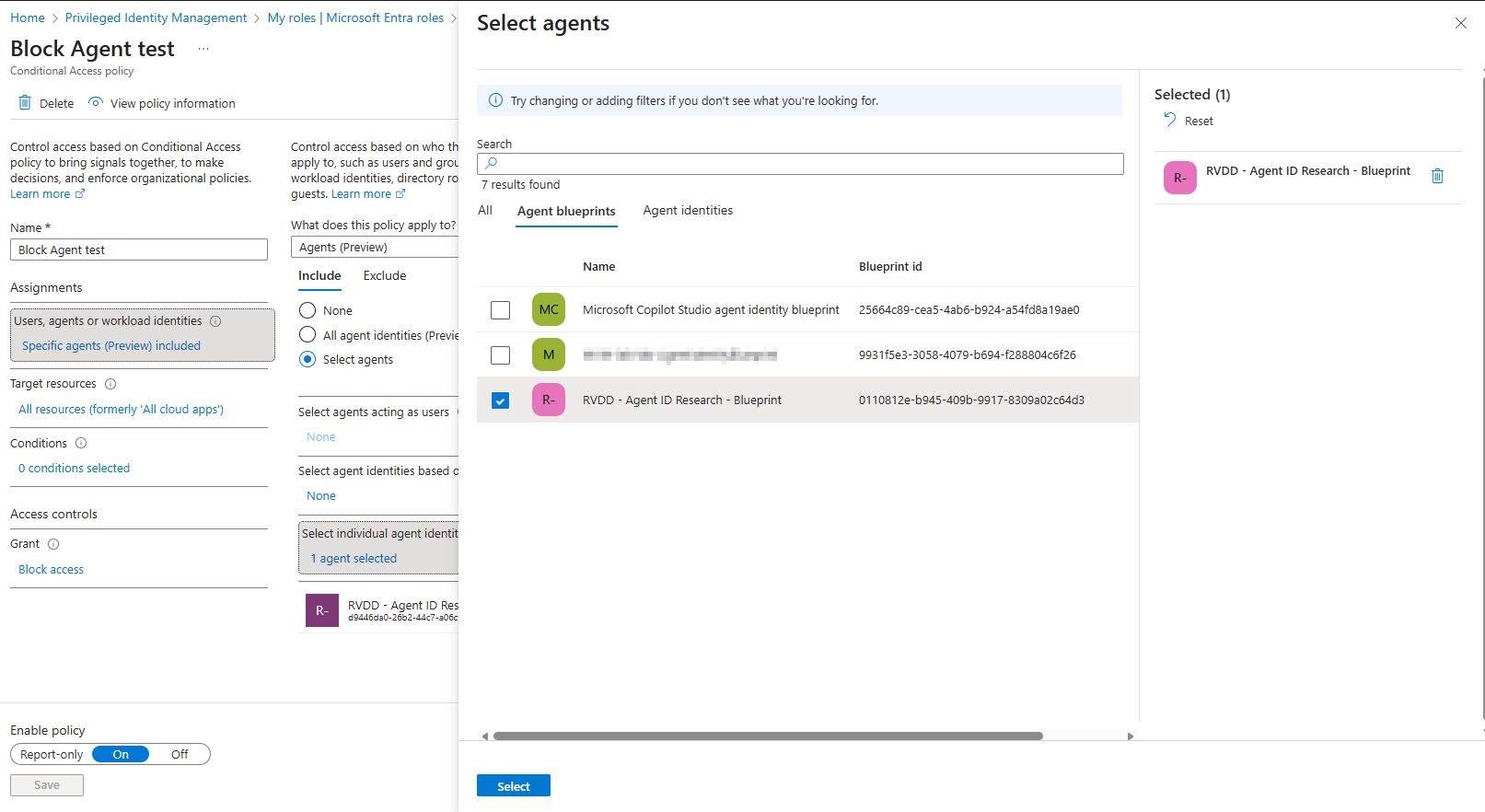
Using the Agent ID features in conditional access, you can target an Agent Blueprint to block all Agent Identities governed by that blueprint. This is very handy when you suspect an Agent Blueprint compromise, making sure all related identities are also blocked rather then having to block the identities one by one:
Disabling the Agent Blueprint Service Principal
Since the Agent Blueprint is essentially a Service Principal in Entra ID, we can disable the Service Principal in order to make sure the Blueprint cannot be used anymore. This will effectively also block new token requests for Agent Identity and Agent Users, since these depend on the Blueprint Service Principal. To disable it, you can use the update Graph Beta API call to change the accountEnabled property.
 1Connect-MgGraph -Scopes "AgentIdentity.ReadWrite.All"
 2
 3$blueprintObjectId = "<blueprint object ID>"
 4
 5$body = @'
 6    {
 7        "accountEnabled": true
 8    }
 9'@
10
11Invoke-MgGraphRequest -Method PATCH -Uri "https://graph.microsoft.com/beta/servicePrincipals/$blueprintObjectId/graph.agentIdentityBlueprintPrincipal" -Body $body -ContentType 'application/json'
Is an Agent User blocked when an Agent Blueprint is?
Just as discussed earlier with Agent Identity related to the Agent User, I was wondering if the Agent User is also blocked when we remediate an Agent Blueprint. Again, the result depends on how we remediate the Agent Blueprint.
The best way again, is to disable the Agent Blueprint Service Principal account as explained in the previous section. If the Agent Blueprint Service Principal is disabled, you cannot request any new access tokens for related Agent Identities and thus cannot request access tokens for Agent Users related to those identities as well.
But if you block the Agent Blueprint in Conditional Access policies, I found that even though the related Agent Identities are also being blocked to access Microsoft graph, you can still use the Agent Identity to get access tokens which you can use to request access tokens for the related Agent User to Microsoft Graph. Meaning that blocking the Agent Blueprint related to an Agent Identity with a 1:1 relation to an Agent User in conditional access does not block the related Agent User, even though a compromised Agent Identity give direct access to the related Agent User.
The interesting part here is that while I would expect that the Agent User is also being blocked since it is a sub-child of a Blueprint, the block only seems to apply to an Agent Identity.
I reported this behavior as a vulnerability to MSRC, but they decided to classify it as ‘By Design’
What about Agent collections?
There is one more feature in the Agent ID space of Entra ID that caught my attention, which is the Agent collections feature. With this feature, you can define how agents are logically organized and discovered during agent-to-agent collaboration. When an agent queries the registry, the system evaluates its metadata and returns only agents permitted for discovery based on their collection membership. It helps organizations establish clear boundaries for discoverability and collaboration, defining how agents can be discovered within the Agent Registry.
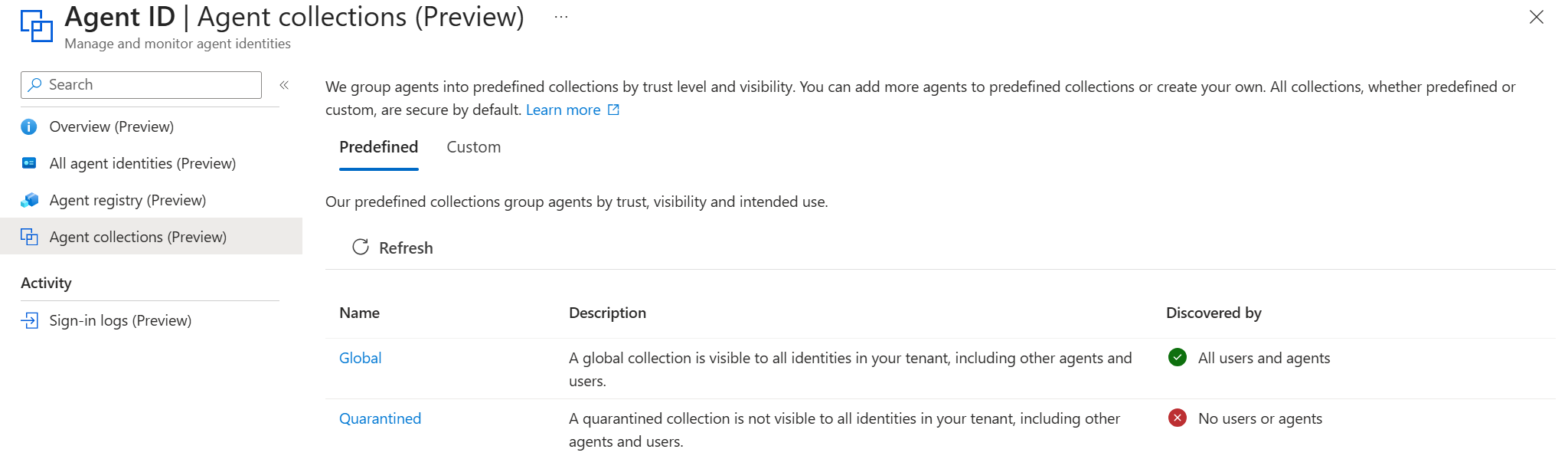
As you can see in the screenshot above, there is a predefined collection called ‘Quarantined’. We can add compromised agents into this group, to make sure the agent cannot discovery any other agents anymore. Although I have to say this begs the question if this step is still needed when you for example disabled the agent identity account as described earlier?
When looking at the Microsoft Agent Registry collection documentation, we can read that agents with an agent identity can query the registry, while agents without an agent identity can only be discovered but cannot perform discovery themselves:
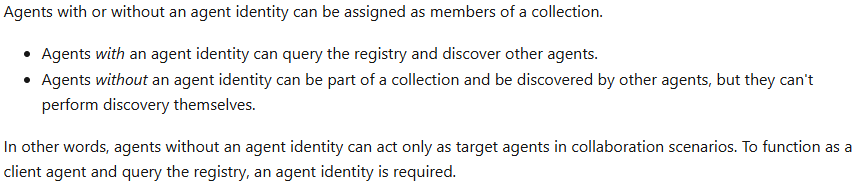
While I was not able to test this, I think because of this that when you disable the Agent Identity account the related agent will also not be able to perform discovery to the Agent Registry anymore. Additionally, Microsoft mentions in a yellow banner on the Quarantined collection that the agents in this collection have been automatically isolated due to risk. But in my test environment I did not see any agent appear in this collection when I confirmed a compromise of the identity in Identity Protection.
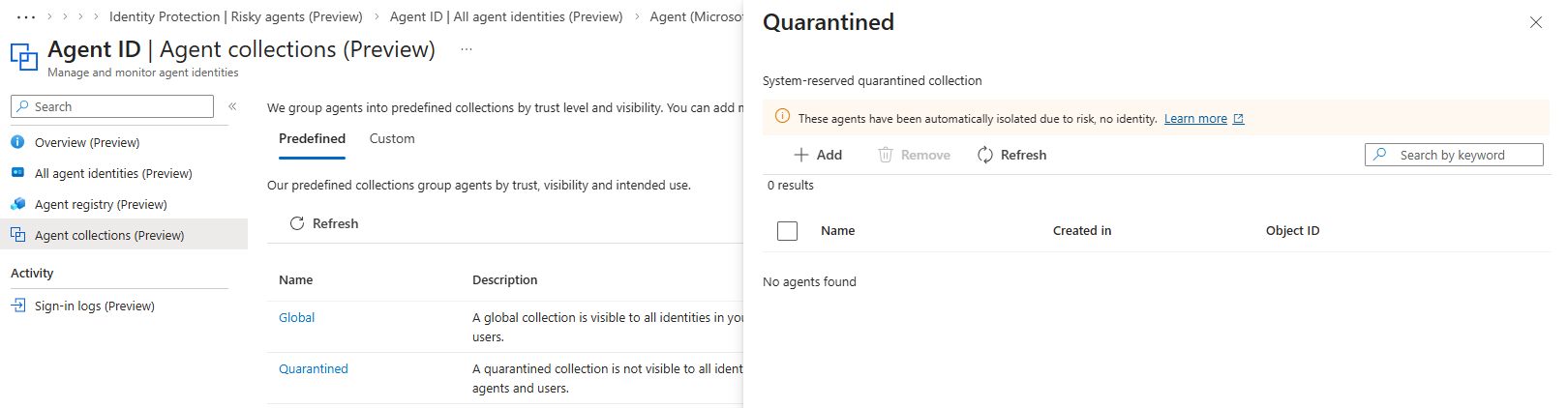
So do we have to add compromised agents to this collection our selves? I am not 100% sure. When you can disable the Agent Identity, I think it is not really needed. But as a good measure, I would recommend to add them to the quarantined collection as well.
Adding an agent to the quarantined collection can be easily done with the GUI. But when looking at the Graph API documentation for adding an agent the a collection, we need the agentInstanceId and the agentCollectionId.
To get the agentInstanceId, we need to query the registry and find out this id based on the Agent Identity ID (yes these are different). For this you can use the beta/agentRegistry/agentInstances API call. When returning the agents from the registry, you can find the agentInstanceId under the id field and search for the correct agent based on the agentIdentityId field:
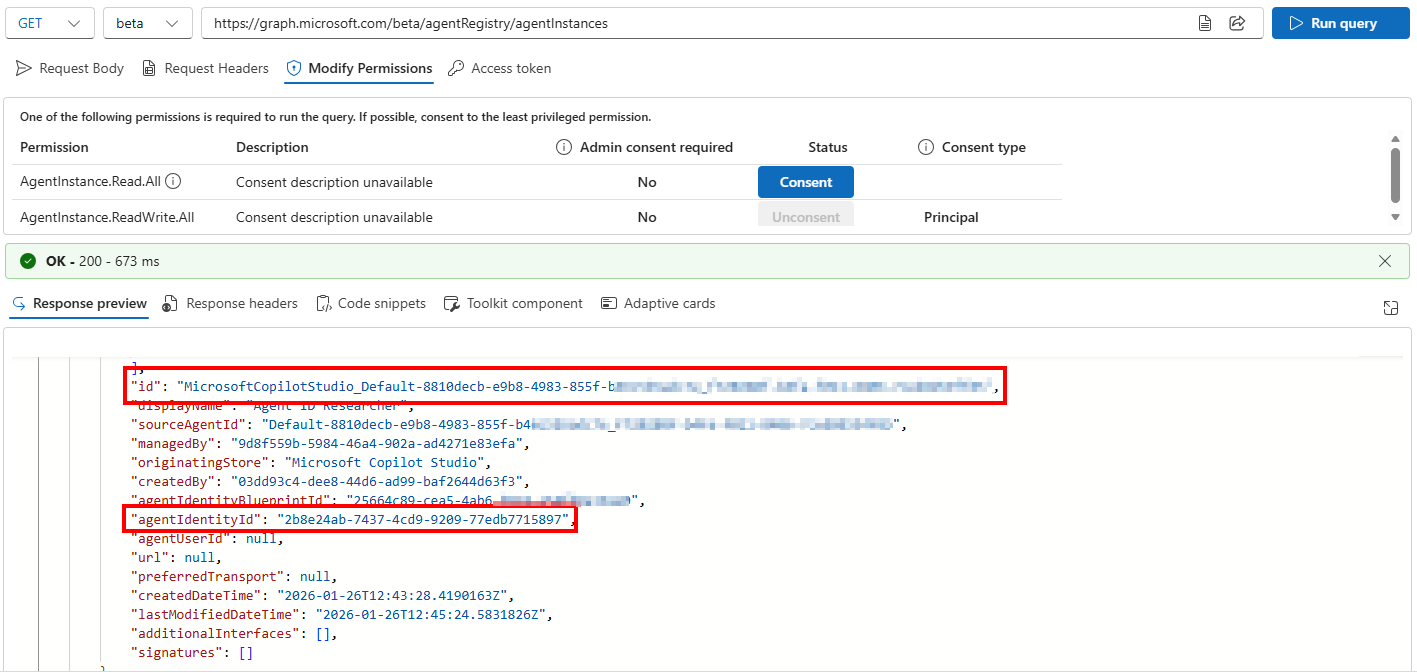
To get the agentCollectionId of the quarantined collection, we need to look in the Graph API documentation. Here we can find that the id for this collection is always 00000000-0000-0000-0000-000000000002.
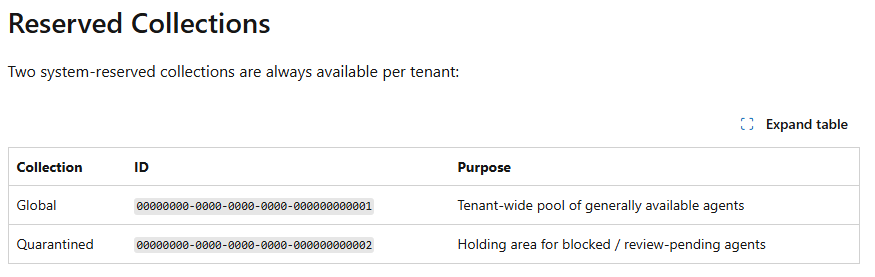
To eventually add and agent to this collection via API, we need to use the Add agentInstance to agentCollection API call. Below you can find an example on how to do this using PowerShell.
 1Connect-MgGraph -Scopes "AgentInstance.Read.All, AgentCollection.ReadWrite.Quarantined"
 2
 3$agentIdentityObjectId = "<agent identity object ID>"
 4
 5$response = Invoke-MgGraphRequest -Method GET -Uri "https://graph.microsoft.com/beta/agentRegistry/agentInstances" -ContentType 'application/json'
 6$agentInstance = $response.value | Where-Object { $_.agentIdentityId -eq $agentIdentityObjectId }
 7$agentInstanceId = $agentInstance.id
 8
 9$body = @{
10    "@odata.id" = "https://graph.microsoft.com/beta/agentRegistry/agentInstances('$agentInstanceId')"
11} | ConvertTo-Json
12
13Invoke-MgGraphRequest -Method POST -Uri "https://graph.microsoft.com/beta/agentRegistry/agentInstances/$agentInstanceId/collections/00000000-0000-0000-0000-000000000002/members/`$ref" -Body $body -ContentType 'application/json'
For some reason, I currently get and ‘UnknownError’ returned when doing this via the Graph API. I am currently waiting for response on a bug report, and will update the blog when I have more information.
Is there more?
Yes there is! While this blogpost mainly focusses on remediating the identity related to an Agent, some Agents might not have en Identity in Entra ID at all. These kind of agents might still require a remediation processes. In future blogposts I will talk about those as well.
Concluding on my best practices
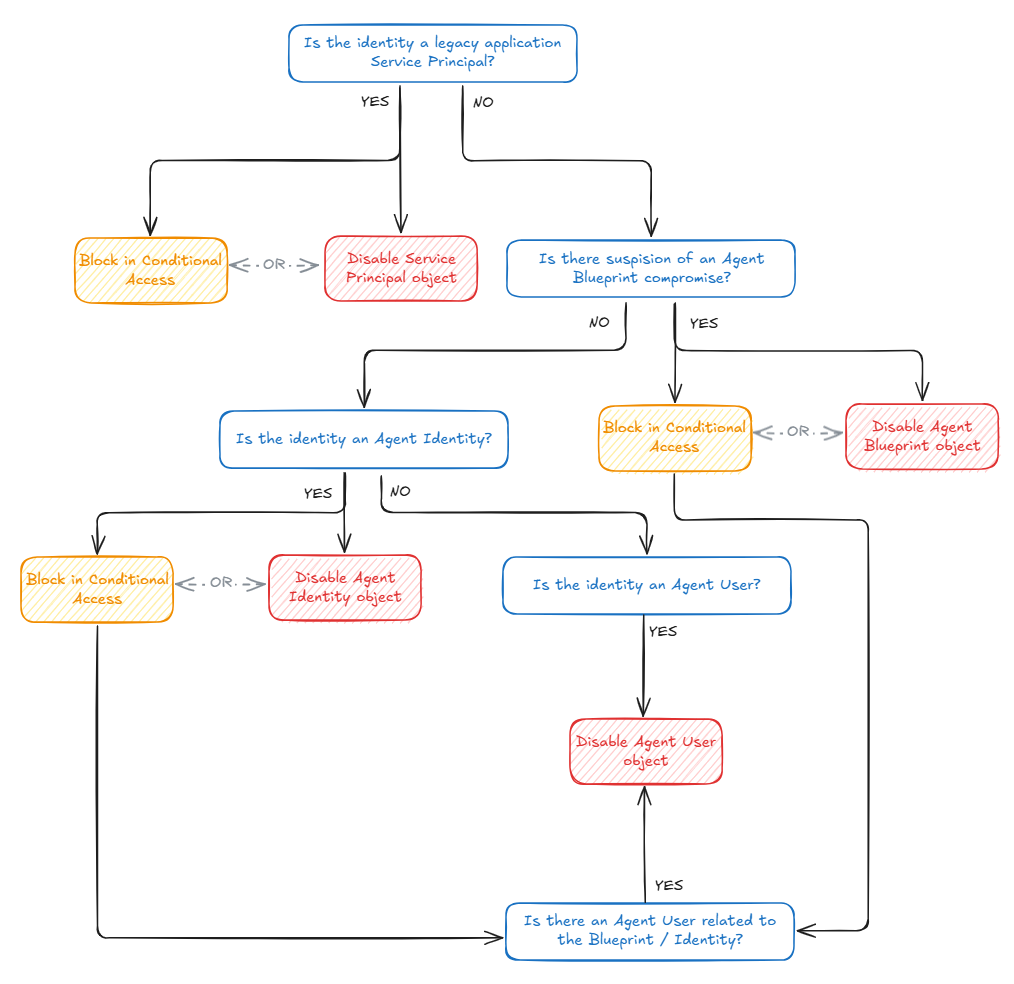
During my research, I learned the various ways on how to remediate an agent with an identity in Entra ID, and the nuances between them. To conclude my personal best practices on how to remediate an identity, I created a graphical overview of the steps to take:
Additionally, you might want to add the agent to the quarantined agent collection as discussed earlier as well.