

Onboarding Microsoft Defender for Endpoint on Ubuntu via Intune

Introduction
During one of my engagements I had to onboard a couple of Ubuntu Linux devices into Microsoft Defender for Endpoint (MDE), and the requirement was to do this through Microsoft Intune. On paper this is simple: you push a script that runs the onboarding package, the device onboards, and it shows up in the Defender portal. But in reality, onboarding linux devices in MDE via Intune turns out not to be as simple as with Windows and MacOS. I ended up spending quite some time figuring out why the deployment kept showing up as ’error’ in Intune - and the rabbit hole went deeper than I expected, all the way down to an error message that had nothing to do with the actual problem.
I think this is a nice one to write down, because almost none of what tripped me up is in the documentation. Most of it only becomes visible once you understand how Intune runs scripts on Linux. Let’s go over it together.
The scripts mentioned in the blogpost are created with AI Coding agents. While I have tested them, make sure to review them yourself as well.
The setup
The way I approached this is probably the way most people do it. In Windows there is an option in the ‘Endpoint detection and response’ policy type to onboard a device in MDE using an MDE client configuration package which you can onboard from a auto generated blob connector.
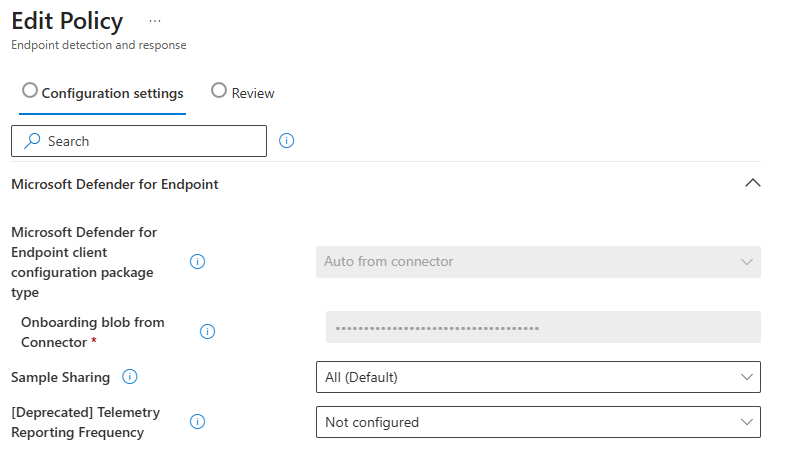
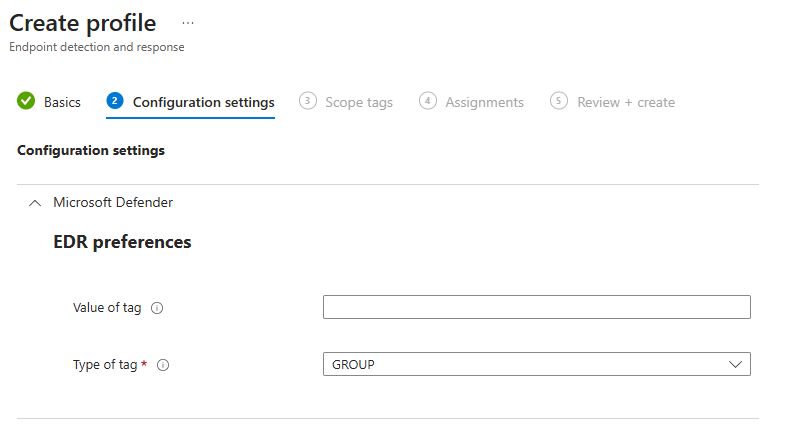
Unfortunately, this option is not availble for the Linux distribution as only tags can be set this way:
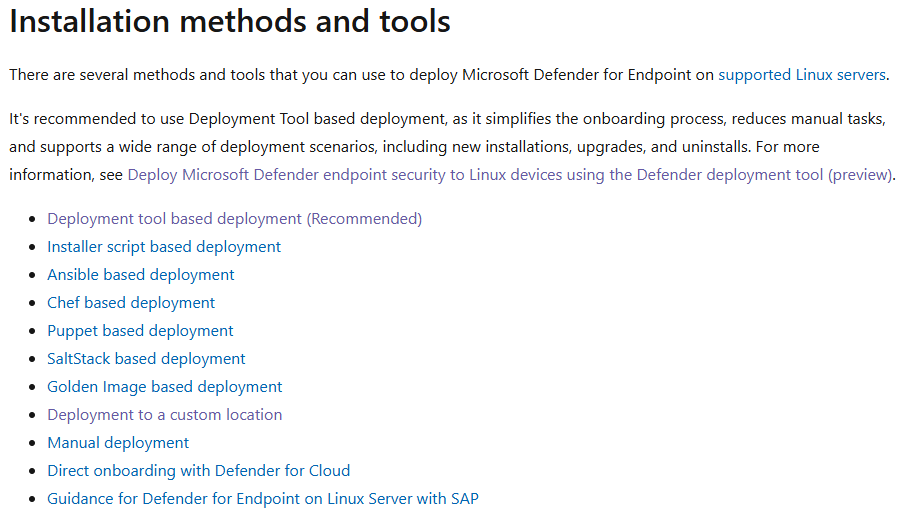
So looking at the Microsoft Learn documentation, I tried and search for the deployments methods you can use for Linux devices. In the past, all my Linux onboardings were Linux servers, meaning these are most of the times managed by tools like Ansible, Puppit, or others. Since in this case the Linux devices were client devices managed by Intune, it was a surprise for me not to see a chapter on how to deploy MDE via Intune:
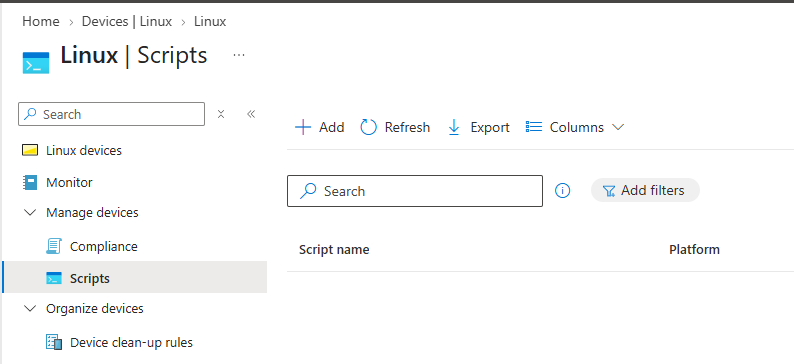
Luckily, we are able to push scripts to Linux devices managed by Intune. So I decided to use the Defender Deployment Tool which under the hood downloads and runs the well-known mde_installer.sh and then onboards the device using the embedded blob, and try to drop and start the deployment tool on the Linux devices using such a script via Intune.
How Intune actually runs Linux scripts
If you come from the Windows world, it is tempting to assume Linux scripts behave the same way. They don’t, and a few of these details matter a lot for onboarding.
Execution context: User vs Root
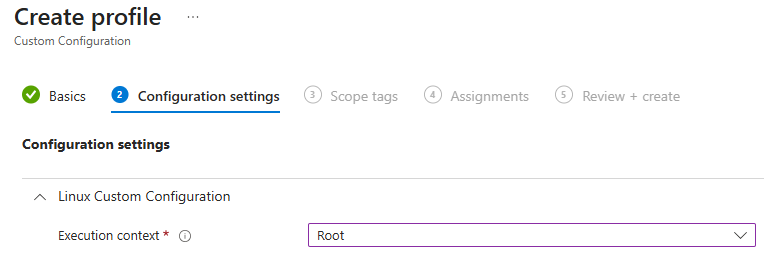
Intune Linux platform scripts can run in two contexts: as the signed-in user, or as root. The important part is that the default is user context. My onboarding script obviously needs root - installing packages and writing the onboarding blob to /etc/opt/microsoft/mdatp/ is not something you do as a normal user.
The catch is that in user context there is no interactive terminal, and the enrolled user typically has no passwordless sudo. So any script that leans on sudo will silently fail the moment it tries to elevate when ran in user context. This is a very easy trap to fall into, because the exact same script runs perfectly when you test it in your own SSH session with sudo.
How Intune decides success or failure
On Linux, Intune determines the result of a platform script purely from its exit code. Exit 0 means success, anything else means the script is marked as ‘Error’. There is no clever parsing of the output - the number the script returns is the whole verdict.
This sounds obvious, but it has a nasty side effect that I will come back to in a minute: if your script does the real work in the middle but ends on a different command, Intune will report the exit code of that last command, not of the work you actually cared about.
The re-run cadence
Unlike a Windows one-time script, a Linux platform script re-runs on a schedule (by default every 15 minutes). That means your onboarding script is not executed once - it is executed again and again. If it is not idempotent, or if it does a full download-and-install on every cycle, you are generating a lot of unnecessary work and a lot of noise. And if any single run trips a non-zero exit code, the tile flips to ‘Error’.
The remote ‘Sync’ device action in the admin center does not apply to Linux. To force a check-in on the device itself, you restart the Intune agent’s systemd user timer (as the enrolled user), for example systemctl --user restart intune-agent.timer. A change to the script content in the portal also bumps the policy version and forces a fresh run on the next check-in.
Creating a deployment wrapper
So we quickly discussed earlier that onboarding Linux devices in MDE can be done using multiple deployment methods. In this case, we need to push some type of deployment script on the Linux devices using Microsoft Intune. While it can work using an onboarding script, I decided to use the Defender deployment tool.
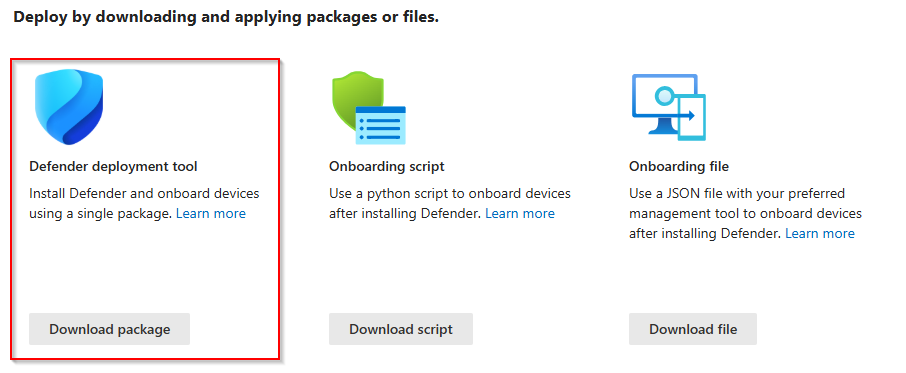
In order to deploy this deployment tool using Intune, we have to overcome a couple of challenges:
- When you download the Defender deployment tool, you get a
defender_deployment_tool.shfile. Dropping this file on the device is one thing, but we need some kind of script that executes the file as well. - Since Intune scripts for Linux need a re-run cadence, we need to make sure that the deployment is idempotent and that we do not launch the onboarding script when not needed.
- Onboarding MDE requires root access, and as discussed earlier we need to choose the root execution context in Intune specifically. If the script runs in the wrong context, it should fail with a clear error message.
- Logging and troubleshooting via Linux is a real mess. So I wanted to have some robust logging mechanism writing what happens on the device in case an onboarding seems to fail.
To fix these challenges, I decided to write a deployment wrapper. And since I am not a master in bash scripting, I asked Claude Code to help me with it :). This wrapper is in essance a bash script that takes care of the re-run cadance, logging on disk, root execution context check, and clean exit code reporting. In the middle of the scipt there is a <<Defender deployment tool>> placeholder, where you should literally just copy paste the content of the defender_deployment_tool.sh you download from the Defender portal. Below more details:
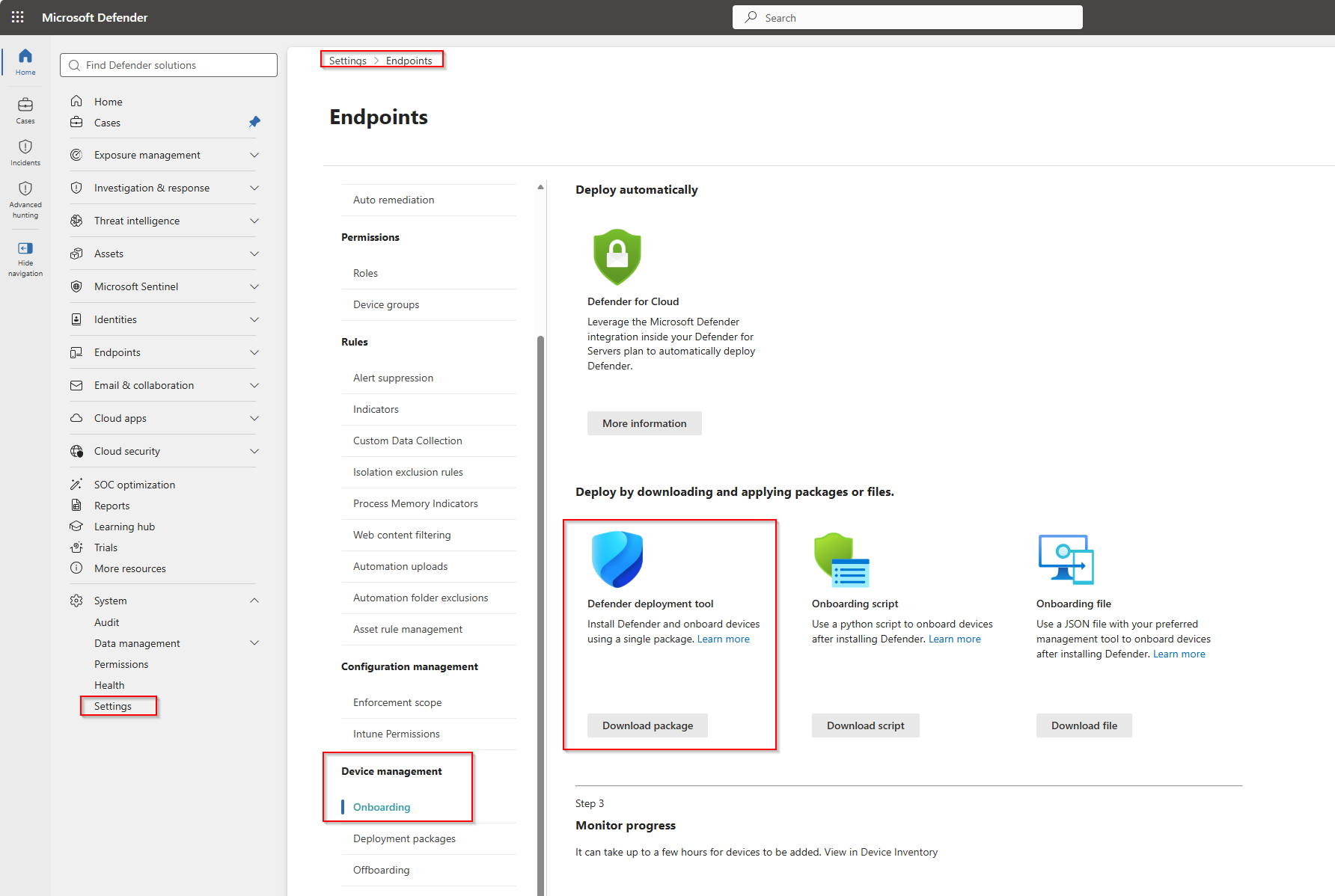
- Download the Defender deployment tool by navigating to https://security.microsoft.com > System > Settings > Endpoints > Device management > Onboarding.
- Use the below deployment wrapper, and copy paste all the contents of the
defender_deployment_tool.shon the<<Defender deployment tool>>placeholder inside the wrapper. Save the file as a new bash filedefender_deployment_wrapper.sh.
  1#!/bin/bash
  2#
  3# MDE onboarding wrapper for Intune (Linux platform script)
  4# -----------------------------------------------------------------------------
  5# Wraps Microsoft's Defender Deployment Tool (DDT) with the tenant onboarding
  6# blob embedded below. Designed to be uploaded as a single .sh under
  7# Intune > Devices > Scripts (Linux) and assigned with:
  8#
  9#     Execution context  : ROOT   (mandatory - see root check below)
 10#     Execution frequency : 1 day  (NOT the 15-min default - the script is
 11#                                   idempotent and self-gates, so frequent
 12#                                   re-runs only add noise)
 13#
 14# Behaviour:
 15#   * Idempotent  - exits 0 immediately if the device is already onboarded to
 16#                   the expected org, so scheduled re-runs are cheap no-ops.
 17#   * Honest exit - propagates the DDT's real exit code to Intune instead of
 18#                   masking it with the cleanup step, so the portal tile
 19#                   reflects the actual onboarding result.
 20#   * Logged      - tees all output to /var/log/mde-onboard/ (Intune does not
 21#                   surface Linux script stdout usefully).
 22# -----------------------------------------------------------------------------
 23
 24set -uo pipefail   # deliberately NOT -e: we capture and propagate exit codes ourselves
 25
 26# ---- Configuration ----------------------------------------------------------
 27EXPECTED_ORG_ID="e898d0f9-5111-4f96-881d-0d15c109a536"   # from the embedded blob
 28DDT_SCRIPT=""                                            # populated by mktemp in main()
 29
 30# ---- Wrapper-specific exit codes (distinct from DDT's) ----------------------
 31ERR_NOT_ROOT=3          # matches DDT's ERR_INSUFFICIENT_PRIVILAGES convention
 32
 33# ---- Logging (with a /tmp fallback if /var/log is not writable) -------------
 34LOG_DIR="/var/log/mde-onboard"
 35if ! mkdir -p "$LOG_DIR" 2>/dev/null; then
 36    LOG_DIR="/tmp"
 37fi
 38LOG_FILE="${LOG_DIR}/mde-onboard-$(date +%Y%m%d-%H%M%S).log"
 39
 40# Send ALL output (stdout + stderr) to the log for the rest of the process.
 41# This is the line that keeps Intune green: the agent marks a Linux script as
 42# "Error" whenever it writes to stderr, even on exit 0 (that's the "Error /
 43# error code 0" symptom). The DDT and mde_installer write warnings to stderr
 44# even on a successful run, so we funnel fd 1 and fd 2 into the log here. The
 45# agent then sees empty streams and the tile is driven by the honest exit code
 46# alone. Must come AFTER $LOG_FILE is defined.
 47exec >>"$LOG_FILE" 2>&1
 48
 49log() { echo "[$(date '+%F %T')] $*"; }
 50
 51# ---- Cleanup: always remove the dropped script, keep the real exit code -----
 52cleanup() {
 53    local rc=$?
 54    if [ -n "$DDT_SCRIPT" ] && [ -f "$DDT_SCRIPT" ]; then
 55        rm -f "$DDT_SCRIPT"
 56    fi
 57    return "$rc"
 58}
 59
 60main() {
 61    trap cleanup EXIT
 62
 63    # --- 0. Environment normalization + diagnostics.
 64    #        The Intune agent runs platform scripts in a stripped, non-login
 65    #        context: HOME is often unset (or "/"), and PATH is minimal. curl
 66    #        doesn't care, but gpg/apt-key/dpkg/apt all need a writable HOME
 67    #        (GNUPGHOME) and a full PATH - which is why a key-import pipeline can
 68    #        fail under the agent while the exact same command works in an
 69    #        interactive `sudo` shell. Capture the raw values for the log first,
 70    #        then normalize so downstream tooling behaves like your manual runs.
 71    local RAW_HOME="${HOME:-<UNSET>}" RAW_PATH="${PATH:-<UNSET>}"
 72    export HOME="${HOME:-/root}"
 73    export PATH="/usr/local/sbin:/usr/local/bin:/usr/sbin:/usr/bin:/sbin:/bin:${PATH:-}"
 74    export DEBIAN_FRONTEND=noninteractive
 75
 76    log "env(raw): HOME=$RAW_HOME PATH=$RAW_PATH"
 77    log "env(now): user=$(id -un 2>/dev/null) uid=$(id -u) HOME=$HOME"
 78    log "tools: curl=$(command -v curl || echo none) gpg=$(command -v gpg || echo none) apt-key=$(command -v apt-key || echo none)"
 79    if [ -r /etc/os-release ]; then
 80        # shellcheck disable=SC1091
 81        . /etc/os-release
 82        log "os: ${ID:-?} ${VERSION_ID:-?} (${VERSION_CODENAME:-?}) arch=$(uname -m)"
 83    fi
 84
 85    # --- 1. Require root. Intune's default context is "User"; sudo has no TTY
 86    #        there and typically no passwordless rights, which is the classic
 87    #        cause of a silent failure. Fail loudly and unambiguously instead.
 88    if [ "$(id -u)" -ne 0 ]; then
 89        log "ERROR: not running as root. Set the Intune script Execution context to 'Root'."
 90        return "$ERR_NOT_ROOT"
 91    fi
 92
 93    # --- 2. Idempotency gate. If already onboarded to the expected org, this is
 94    #        a no-op so the scheduled re-run stays green and cheap.
 95    if command -v mdatp >/dev/null 2>&1; then
 96        local licensed org
 97        licensed="$(mdatp health --field licensed 2>/dev/null | tr -d '"[:space:]' || true)"
 98        org="$(mdatp health --field org_id 2>/dev/null | tr -d '"[:space:]' || true)"
 99
100        if [ "$licensed" = "true" ] && [ "$org" = "$EXPECTED_ORG_ID" ]; then
101            log "Already onboarded to org $org. Nothing to do."
102            return 0
103        fi
104
105        if [ "$licensed" = "true" ] && [ -n "$org" ] && [ "$org" != "$EXPECTED_ORG_ID" ]; then
106            # Wrong tenant: re-running the DDT will NOT fix this (its onboard step
107            # short-circuits when already licensed). Surface it, but return 0 so
108            # the tile doesn't error every cycle with no path to self-heal.
109            # Remediate manually: mdatp offboard, then let this script re-onboard.
110            log "WARNING: onboarded to a DIFFERENT org ($org), expected $EXPECTED_ORG_ID."
111            log "WARNING: manual offboard required before re-onboarding. Skipping."
112            return 0
113        fi
114
115        log "mdatp present but not onboarded (licensed=$licensed). Proceeding."
116    else
117        log "mdatp not installed. Proceeding with install + onboard."
118    fi
119
120    # --- 3. Drop the embedded DDT to a private temp file (0700; it carries the
121    #        signed onboarding blob, so keep it non-world-readable).
122    DDT_SCRIPT="$(mktemp /tmp/mde_ddt.XXXXXX.sh)"
123    chmod 700 "$DDT_SCRIPT"
124
125    cat > "$DDT_SCRIPT" <<'DDT_PAYLOAD_EOF'
126
127<<Defender deployment tool>>
128
129DDT_PAYLOAD_EOF
130
131    # --- 4. Run the DDT as root (no args = default: --install --pre-req, i.e.
132    #        full install + onboard using the embedded blob). Capture its real
133    #        exit code so Intune reflects the true onboarding outcome.
134    log "Launching Defender Deployment Tool ($DDT_SCRIPT)..."
135    bash "$DDT_SCRIPT"
136    local ddt_rc=$?
137
138    if [ "$ddt_rc" -eq 0 ]; then
139        log "DDT completed successfully (exit 0)."
140    else
141        log "DDT FAILED (exit $ddt_rc). See output above and /var/log/microsoft/mdatp/ for detail."
142    fi
143
144    return "$ddt_rc"
145}
146
147# All output already goes to the log via the exec redirect above (stderr merged
148# into it), so the agent's streams stay clean. Run main directly and exit with
149# its real code - no tee / PIPESTATUS needed anymore.
150main
151rc=$?
152log "Wrapper exiting with code $rc (log: $LOG_FILE)"
153exit "$rc"
- Navigate to https://intune.microsoft.com > Devices > Linux > Scipts and create a new deployment script.
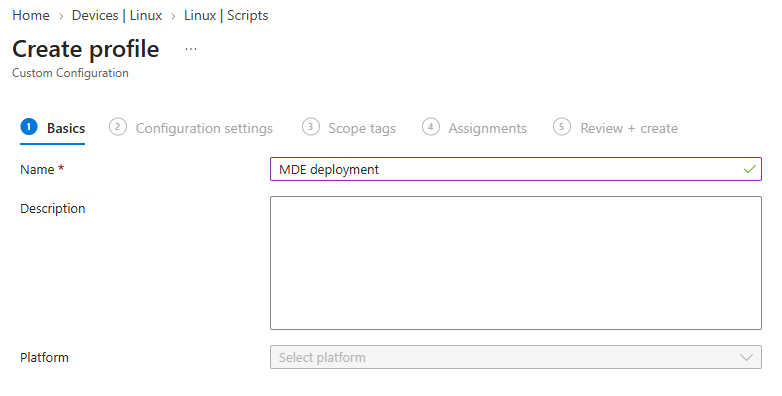
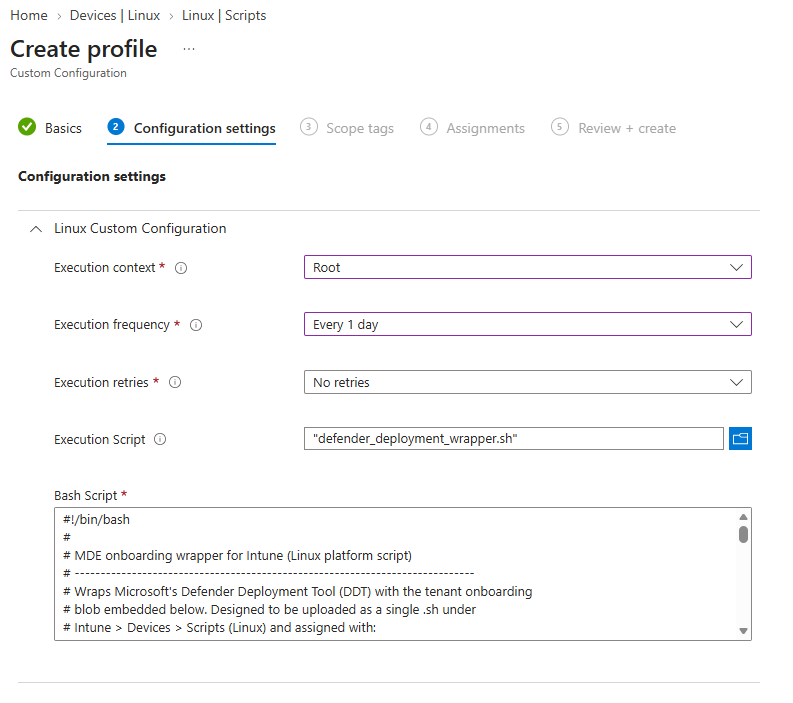
- Make sure that the Execution context is set to ‘Root’ and upload the wrapper script. Execution frequency and retries are less important since the script is idempotent, but for production deployments I would recommend every 1 day without retries.
- Assign user or device groups and deploy the script.
After deploying this, the wrapper script should execute on the Linux device and the MDE onboarding is started. For troubleshooting you can find the logs on the Linux device by looking for the /var/log/mde-onboard/mde-onboard-*.log file. This file logs what happens during the onboarding process and give you a trace for troubleshooting when something goes wrong. If you want to see the MDE onboarding landing via the Intune service, you can use journalctl -u intune-daemon.service -f as well. At the end, of the deployment succeeds, the Intune status should be green an de devices should be onboarded in Defender for Endpoint.
Fixing false Intune error codes
When you deploy Linux scripts via Intune, you will probably notice that you almost always get error statuses in the Intune portal. And if you click further, you can see in a lot of cases that the script actually returned a 0 error code which means success.

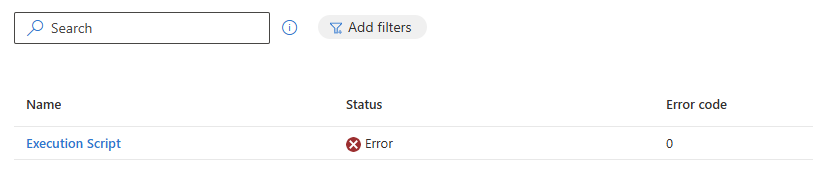
I learned that Intune reports a script run as error the moment something in the script gets written to stderr, regardless if that script returns a exit code of 0. To fix this, I added the below specific line in the MDE deployment wrapper that redirects all errors to a local file instead of the stderr stream. If a real error occurs, we return a non-zero return code so Intune still correctly uses error statuses if something went wrong as well.
Configuring MDE
This blogpost focuses on deploying Defender for Endpoint on Linux devices using Microsoft Intune. Important to note is that after onboarding, multiple policies and settings should be configured in order to customize Defender for Endpoint to your needs. We will not cover these configurations in this blogpost. More information can be found in the Microsoft Learn pages here: https://learn.microsoft.com/en-us/defender-endpoint/linux-preferences.
The Intune on Linux caveat
Deploying Microsoft Defender for Endpoint on Linux via Microsoft Intune obviously has one very big dependency: The Microsoft Intune company portal working reliably. And while deploying MDE needed to be done in special ways, a big part of my troubleshooting came because of Microsoft Intune not working like it is in my opinion supposed to on Linux devices. For example:
- The Company Portal service runs as the end user instead as a system service
- The Company Portal is not started automatically when the user signs into the device
- User must manually click the ‘sign in’button after they open the Company Portal before they are being logged in and policies are synced
Because of this, the Defender for Endpoint deployment script does not land on the device as long the Intune service is running and pulling in configurations. Users had to manually open and login into the Company Portal before the Defender for Endpoint deployment could start. No user logging into the Company Portal = No MDE onboarding.
To explain this rabbit hole an how I fixed it, I wrote a separate blogpost which you can read here: https://hybridbrothers.com/posts/intune-on-linux-automation/